

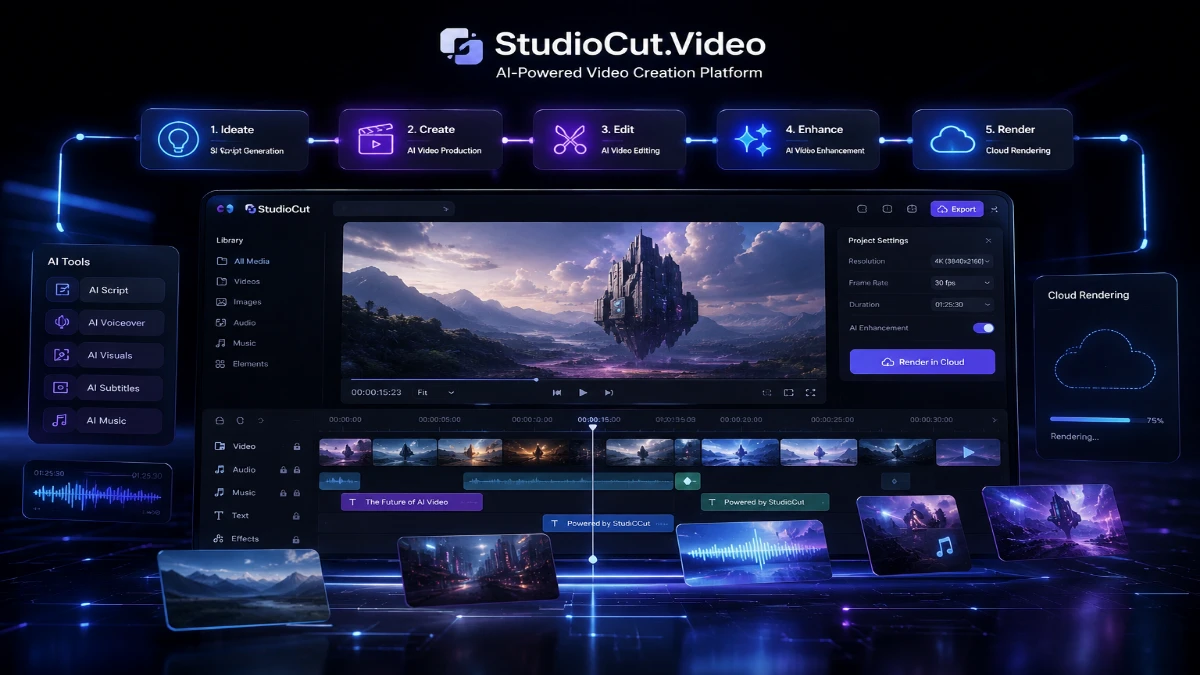
Disclosure: This article may contain affiliate links. If you sign up through one of them, I may earn a small commission at no extra cost to you. That doesn’t change what I actually think — you’ll get the full picture below, good and bad.
I’ve reviewed a lot of “AI video generator” tools over the past few years. Most of them do the same thing: you type a prompt, wait a minute, and get a slideshow with a robotic voice reading text over stock footage. StudioCut.Video markets itself differently. It calls itself a production pipeline, not a one-click generator. That claim is worth testing, because companies often say this right before disappointing you.
So I spent time going through the actual workflow. I fed it an article, watched it build a script, approved a storyboard, and checked what came out the other end in landscape, portrait, and square formats. Here’s what I found.
Quick Verdict
StudioCut.Video turns articles, URLs, RSS feeds, PDFs, scripts, or plain topic ideas into finished videos. It runs a five-phase process: planning, asset creation, visual direction, rendering, and publishing prep. It doesn’t hand you a black-box render. Instead, it stops after the planning phase and asks you to approve the storyboard before it spends real resources on production. You can review every phase individually, or flip on Auto-Approve and let it run unattended.
The tool suits creators, marketers, and agencies who publish video regularly. If you want to turn existing written content — blog posts, product pages, RSS feeds — into video without hiring a scriptwriter, voice actor, and editor for every piece, this fits. If you want full manual control over every frame, like you’d get in Premiere or DaVinci Resolve, look elsewhere. It isn’t trying to be that tool.
Product Overview
| Detail | Information |
|---|---|
| Product Name | StudioCut.Video |
| Category | AI Video Production Platform |
| Creator | Super Simple Software LLP |
| Launch Date | Not publicly listed on the site. The product runs active release v19.0.7.9.9 at the time of writing, which suggests a mature, frequently updated platform |
| Price | Free plan available; paid plans range from $19/month to $149/month (details below) |
| Refund Policy | 14-day refund window on new subscriptions (under 50% of monthly video allotment used); prorated credit or cash after that; 30-day window on annual plans |
| Website | studiocut.video |
| Best For | Content creators, marketers, and agencies converting written content into publish-ready video at scale |
| Overall Rating | 4.3 / 5 |
What Is StudioCut.Video?
StudioCut.Video starts from a simple premise. A finished video isn’t one asset — it’s four jobs stitched together. A scriptwriter researches and structures the narrative. A voice artist records narration. An editor builds the visuals and cuts the final render. A project manager tracks everything and packages it for publishing. Most AI video tools compress all four jobs into a single automated step. That’s exactly why the output often feels off: mismatched pacing, generic visuals, narration that doesn’t match the scene.
StudioCut splits those jobs back apart into five distinct phases. It puts a human approval gate in front of the plan before anything expensive happens. The tool doesn’t just try to make video from text — plenty of tools already do that badly. It tries to make video from text without you discovering the mistakes only after render.
You can start from almost anything: a pasted article, a URL it scrapes directly, an RSS feed that feeds it automatically, a PDF, a pre-written script, a list of bullet points, a bare topic, or product information for a demo-style video. Once you approve the plan, it can fan out into up to five language variants from a pool of 24 supported languages. It also renders natively in three aspect ratios — landscape, portrait, and square — from the same source material.
Main Features
The Five-Phase Pipeline
This is the structural idea behind the whole product. It’s worth explaining in detail, because it genuinely differs from most competitors.
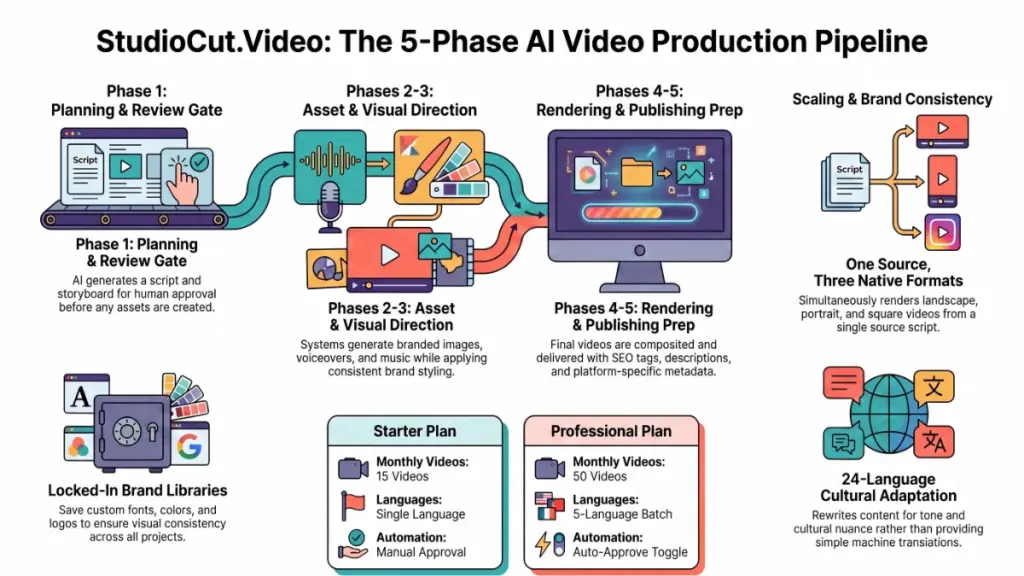
- Phase 1 — Planning: The AI researches your topic (or reads your article/script) and produces a full blueprint: narrative arc, scene-by-scene breakdown, voice-over script, and animation notes. You can edit any scene here before the system generates a single image or audio clip. This is the review gate — nothing expensive happens until you sign off.
- Phase 2 — Asset Creation: Once you approve the plan, the system generates AI images per scene, records the voice-over in your chosen voice and pacing, sources background music, and produces thumbnails.
- Phase 3 — Visual Direction: The system styles scene layouts with entrance, emphasis, and exit animations, applies your brand colors, and sets platform-correct safe zones so text doesn’t crop on a vertical Short versus a landscape upload.
- Phase 4 — Rendering: The final composited video comes together — synced narration, music with automatic ducking under dialogue, transitions, and animations baked in.
- Phase 5 — Publishing Prep: You get an optimized title, a chapter-marked description, SEO tags, a thumbnail, and metadata formatted per platform.
You can review every phase individually, or toggle Auto-Approve for unattended, end-to-end runs. That’s useful for overnight batches once you trust the output for a given brand or niche.
Multi-Format, Multi-Language Output
From one source script, StudioCut renders three formats: 1920×1080 landscape for YouTube long-form, 1080×1920 portrait for Shorts, Reels, TikTok, and Facebook Stories, and 1080×1080 square for feed posts. For language, you can select up to five target languages per production out of 24 supported. The platform doesn’t just run the script through machine translation. It re-runs cultural adaptation on tone and phrasing per language and gives each variant its own voiceover and metadata. It shares underlying assets like images and music across variants, so you don’t pay to regenerate art five times over.
Brand Library
Agencies and creators managing more than one channel or client will care about this feature. You can save complete brand kits — five color channels, heading and body fonts, logo, a defined music mood, CTA text, and special requirements — as named, reusable presets. Apply a preset in one click, and every video that follows stays visually consistent. Past videos stay locked to the brand settings that existed when you made them, even if you update the preset later.
Growth Tools Beyond Production
StudioCut also ships four adjacent tools that most competitors skip. A Topic Generator suggests produce-ready ideas — title, hook, angle — based on your niche. A Trend Spotter pulls from four trend sources and ranks results by momentum. An Auto Job Finder scans freelance marketplaces for video gigs and drafts pitches. A Landing Page Builder turns a finished video into a standalone marketing page.
AI Assistant / MCP Integration
I haven’t seen this feature from any direct competitor. StudioCut runs an MCP server. That means you can brief, price, and start a production directly from Claude Desktop, Claude Code, or any other MCP client, without touching the web app. Drafting and pricing a batch costs nothing — the platform charges you only after you accept a quoted cost. The assistant can read the storyboard back to you and argue for it, but it can’t approve it on your behalf. It also can’t publish anything. The actual act of pushing a video live stays a deliberate, manual step inside the app.
Benefits
The review-gated structure delivers the single biggest practical benefit. Instead of discovering forty minutes into a render that the AI misread your article’s core point, you catch the problem at the script stage. A fix costs you thirty seconds there, not a wasted render.
The brand library saves real time once you produce more than a handful of videos a month. You stop rebuilding color and font settings from scratch every time. The multi-language fan-out genuinely helps if you want to reach non-English audiences without hiring separate voice talent and translators per market. And the nine input types free you from writing every script by hand. An existing blog archive or an RSS feed can become a running video pipeline with very little manual intervention.
My Experience
Getting Started
Setup took a few minutes. I signed up — no credit card required for the free tier — and landed straight in the wizard. I fed it a full article on a fairly ordinary topic to see how it handled real prose rather than a curated prompt.
First Impressions
Phase 1 didn’t just spit something out immediately. It actually researched and structured the content before showing me the plan, and the scene-by-scene breakdown came out more coherent than I expected from a first pass. I made two edits to the script before approving, and the interface let me do that inline without restarting anything.
Speed and Output Quality
Asset creation and rendering took roughly the time the platform advertises: around 15 minutes end-to-end for a short piece, review time included. The voiceover pacing matched the scene timing well. The automatic music ducking under narration sounded smoother than what I’ve heard from lower-tier tools, where background audio often fights with the voice track.
What I Didn’t Love
Because everything is review-gated by default, a fully hands-off run requires you to deliberately switch Auto-Approve on. That’s clearly a design choice in favor of quality control over speed, and I understand why. But if you expect a single “generate” button and a finished video thirty seconds later, this tool won’t satisfy that instinct.
The visual style options felt solid but not infinite. You get a defined set of styles plus custom branding on paid plans, not a fully open-ended creative canvas. If you picture something with the visual range of a dedicated motion design tool, temper that expectation.
Ease of Use
The wizard-style flow feels straightforward if you’ve used basic SaaS tools before. You pick your input type, paste or upload, choose format and language, and let Phase 1 run. The learning curve stays low for producing a single video. A second layer of complexity exists too — brand presets, multi-language batches, RSS automation — and that takes more time to understand, though you don’t need it for a first video. The Help Center offers step-by-step guides that cover most of this, and the FAQ answers common billing and workflow questions directly.
Performance
Rendering speed held up across the formats I tested. I didn’t run into failed jobs or stalled queues during my sessions. The platform says it routes around slow AI providers automatically, and that tracked with what I experienced — I saw no visible interruptions mid-production. The AI-generated visuals stayed consistent scene to scene. As with any AI-generated imagery, though, some scenes read as more generic than others, depending on how abstract the topic gets.
Pricing
StudioCut.Video runs four tiers, monthly or annual. You don’t need separate accounts or API keys for the underlying AI models — the platform meters usage and bills it at cost, or you can bring your own provider keys if you’d rather manage that yourself.
| Plan | Price | Videos | Storage | Key Extras |
|---|---|---|---|---|
| Free | $0 | 3/month | 500 MB | 10 AI voices, 5-minute max duration |
| Starter | $19/mo | 15/month | 5 GB | URL & RSS imports, 3 concurrent jobs |
| Professional | $49/mo | 50/month | 25 GB | Multi-language batch (5 variants), custom branding, Auto-Approve, premium voices, 5 concurrent jobs |
| Enterprise | $149/mo | Unlimited | Unlimited | Unlimited concurrency, priority queue and support |
The company sells agency seats as an add-on rather than bundling them by default. That structure makes sense if you run only one brand, but budget for it if you manage multiple clients from one workspace.
On the refund side, new subscribers get a 14-day window to request a full refund, provided they haven’t used more than half their monthly video allotment. That beats the flat “no refunds” language many SaaS tools bury in their terms. After that window, StudioCut prorates cancellations and downgrades, either as cash back or instant account credit. Annual plans get a 30-day window, net of the built-in annual discount. The company won’t refund add-on charges you’ve already consumed or AI vendor costs it’s already paid upstream — a standard and reasonable exclusion.
Pros
- Review gate before expensive generation — you catch problems in the script phase, not after a full render
- Genuine multi-format output — landscape, portrait, and square from one source, not three separate projects
- Multi-language fan-out with cultural adaptation, not flat machine translation
- Nine input types, including RSS automation and bulk batch (up to 20 videos in one pass)
- Brand library that keeps past videos locked to their original branding
- Transparent, at-cost AI billing with the option to bring your own provider keys
- MCP support for driving productions from Claude or other AI assistants, with spending caps and no auto-publish
- Fair refund policy relative to most SaaS video tools
Cons
- Not hands-off by default — genuine one-click automation requires you to actively opt into Auto-Approve
- Defined visual style range — you work within the platform’s style set and custom branding, not bespoke motion design
- Tight caps on Free and Starter tiers — video count and duration limits will feel restrictive fast if you publish daily
- Agency features cost extra — they come as an add-on seat, not a bundled flat rate
- Thin public track record — the site doesn’t list a launch date, so you have less history to judge long-term reliability against than with more established players
Comparison With Competitors
StudioCut.Video positions itself against tools like Synthesia, Pictory, and Runway. The differences are fairly clear-cut rather than marginal.
Synthesia leans heavily on AI avatar presenters talking to camera. It works well for corporate training and explainer content where a “face” matters, but it doesn’t turn long-form articles or RSS feeds into narrated, scene-based video the way StudioCut does.
Pictory sits closer in spirit — it also builds text-to-video from articles and scripts. But it skips the same five-phase, review-gated pipeline. It tends toward faster, more automated output with less of a formal approval step between planning and rendering.
Runway occupies a different category entirely. It’s a generative video and editing toolkit aimed at experimental, frame-level creative control, not a production pipeline for turning existing written content into publish-ready social and YouTube videos on a schedule.
If you prioritize quality control and repeatable branded output at scale, StudioCut’s structure makes the more deliberate choice. If you want the fastest possible turnaround with less oversight, or you need photorealistic AI presenters specifically, one of the alternatives may fit better.
Who Should Buy It?
- Content creators and bloggers who want to repurpose existing articles into YouTube, Shorts, Reels, or TikTok content without learning video editing
- Marketing teams and agencies producing branded video across multiple clients who need consistent output and shared brand libraries
- Businesses running an active blog or RSS feed who want that content to become a video pipeline automatically
- Anyone who wants control over the script and voiceover before committing to a full render, rather than accepting whatever a single-click generator produces
- Teams already working inside Claude or another MCP-compatible assistant who want video production accessible from that same workflow
Who Should Skip It?
- Editors who want frame-by-frame manual control over motion graphics and composition — this is a guided pipeline, not a timeline editor
- Anyone who needs a specific AI avatar presenter talking directly to camera as the core format
- Solo creators publishing only occasionally, since the free tier’s 3-videos-a-month cap may cover their needs without a paid plan
- Teams that need a long, independently verified track record before adopting a tool, given how little third-party review history currently exists
Frequently Asked Questions
Does StudioCut.Video require a credit card to start? No. The free plan includes three videos a month, and you don’t need a credit card to sign up.
Can it turn an existing blog post into a video automatically? Yes. Paste the article text or a URL, and the pipeline scrapes the content, extracts images where relevant, and builds a scene-by-scene script from it.
How many languages does it support? It supports 24 languages, including right-to-left scripts, with cultural tone adaptation rather than flat translation. You can select up to five target languages per production.
Can I run it completely hands-free? Yes. Enable Auto-Approve, and the platform skips the manual review gate at each phase for unattended, end-to-end production — useful for overnight or high-volume batches.
What video formats does it export? It exports three native formats from one source: 1920×1080 landscape, 1080×1920 portrait, and 1080×1080 square, covering YouTube, Shorts, Reels, TikTok, and Stories.
Is the AI cost included in the subscription price? No. The platform meters AI usage and bills it at cost, with no markup, separate from the subscription tiers. You can also bring your own AI provider keys if you’d prefer to manage that spend directly.
What’s the refund policy? New subscribers can request a full refund within 14 days of the first charge if they’ve used less than half their monthly video allotment. After that, StudioCut prorates cancellations as credit or cash. Annual plans get a 30-day window.
Can I use it from Claude or another AI assistant? Yes. StudioCut.Video runs an MCP server that lets Claude Desktop, Claude Code, or other MCP clients draft, price, and start productions. Final storyboard approval always requires a human, and no tool lets an assistant publish on your behalf.
Is there an agency plan for managing multiple clients? Agency functionality — shared libraries, per-client workspaces, and role-based approval — comes as an add-on seat rather than a separate flat-rate plan.
Does it work for e-commerce product videos? Yes. Product information (name, specs, benefits) counts as one of the supported input types, and it produces a demo or explainer-style video from structured product data.
Free Gift Waiting for You!
Before you leave, there’s a free gift waiting for you.
As a thank-you for reading, you can claim my Ultimate All-In-One Digital Marketing Package completely FREE.
What’s Inside Your Ultimate All-In-One Package
01. 50 AI Digital Product Ideas
A curated collection of highly profitable AI-powered digital product ideas designed for quick implementation and strong profit potential.
02. Digital Sales Mastery
Discover the proven framework behind high-converting sales funnels, persuasive copywriting, and sustainable online revenue growth.
03. Mastering Email List
Advanced strategies for building an engaged email audience, increasing open rates, improving click-through rates, and generating automated income.
04. The Ultimate Faceless Playbook
A complete blueprint for building a profitable online brand and growing on social media without ever showing your face.
BONUS: Premium Canva Marketing Vault
A premium library of high-converting Canva templates to help you create professional marketing assets, generate more organic traffic, and boost conversions.
Total Package Value: $197
Yours Today: FREE
Claim your complimentary bundle and get instant access to premium resources that can help you create, market, and grow your online business more effectively.
Final Verdict
StudioCut.Video ranks among the more thoughtfully structured AI video tools I’ve spent time with. It doesn’t hide the production process behind a single “generate” button. Splitting the work into five phases with a review gate before the expensive parts kick in gives real value to anyone who’s been burned by a black-box render that missed the point of the source article.
It earns its price if you produce video regularly — from a blog, an RSS feed, or a content calendar — and want the output to stay on-brand without rebuilding settings every time. It becomes a harder sell if you only need a video now and then, where the free tier’s limits might cover you already, or if you actually want manual, frame-level editing control.
I’d recommend it to creators and marketing teams who value catching mistakes before render over pure one-click speed. Start on the free plan, run a real article through it, and judge the output the same way I did — before you decide whether to upgrade.