

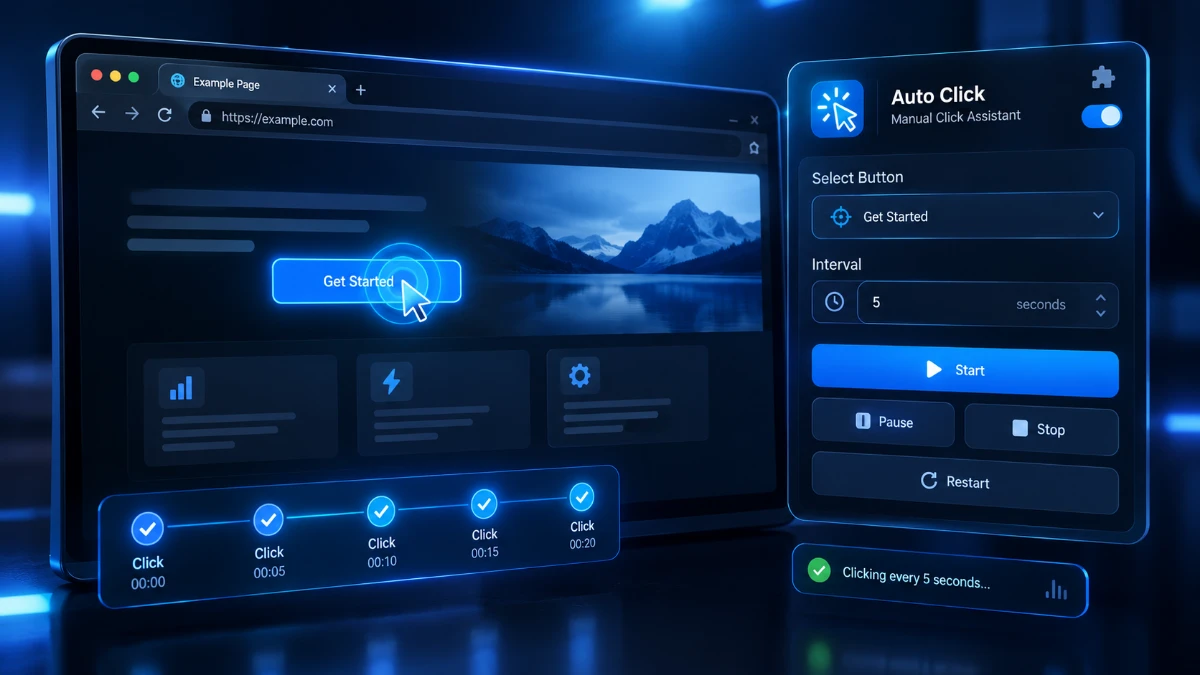
Auto Click – Manual Click Assistant is a lightweight Chrome extension that repeatedly clicks one selected button at a fixed interval. At $9.97, it targets users who need simple repetitive-click automation without coding. Its visible controls and easy setup are useful, but Chrome-only support, manual installation, no refunds, single-button operation, and limited tested session length are important drawbacks.
Some tasks are simple but tedious. You open a page, find the same button, and click it again, and again, and again. It takes almost no skill and it eats your attention anyway.
Auto Click – Manual Click Assistant is a small Chrome extension built for exactly that chore. You pick a button, set a time interval, and let the extension do the tapping while you keep an eye on it.
The launch price is low and the promise is narrow, which I like. But there are also a few details on the sales page you should know about before you pay, especially the no-refund policy and the checkout upsell. This review covers what the tool does, where it falls short, and who should buy it.
Quick Verdict
Auto Click is a focused, single-purpose Chrome extension that clicks one button you choose at a fixed interval, with everything visible and under your control.
At $9.97 for a one-time purchase, the price risk is small. The design is sensible: no background activity, and you can pause or stop whenever you want.
Best for: Chrome users who repeat the same click on the same kind of page and want a lightweight tool without writing scripts.
Not ideal for: anyone who needs multi-step workflows, randomized delays, scheduling while the browser is closed, or a refund safety net.
My impression: honest, limited, and fairly priced for what it does. The all-sales-final policy and the fact that the tool has only been tested for 2–3 hour sessions keep it from a higher score.
Product Overview
| Detail | Information |
|---|---|
| Product Name | Auto Click – Manual Click Assistant |
| Category | Chrome extension / browser click automation |
| Creator | Not clearly named (the page footer shows a placeholder, “Your Brand”) |
| Launch Date | Not listed (the page mentions launch pricing) |
| Price | $9.97 one-time (regular price shown as $49.97) |
| Refund Policy | None. All sales are final |
| Website | Vendor sales page, sold through JVZoo |
| Best For | Repetitive single-button clicking in Chrome |
| Overall Rating | 3.5/5 (provisional, based on the sales page and not on hands-on benchmarks) |
What Is Auto Click – Manual Click Assistant?
Auto Click is a lightweight extension for Google Chrome. It repeatedly clicks a button you select on a web page, at an interval you choose, for as long as the tab stays open.
The “Manual Click Assistant” part of the name tells you the philosophy. This isn’t meant to be a hidden bot. According to the vendor, all clicks are visible in your active tab, there is no background behavior, and you can start, pause, stop, or restart with one click.
The Problem It Solves
Repetitive clicking shows up in more places than you’d expect:
- Clicking “Load More” or “Next” to move through long lists or paginated content
- Refreshing a status page or dashboard that has its own refresh button
- Pressing the same test button while checking a web interface
- Repeating an action in a web tool that offers no bulk option
- Working through a platform workflow that requires repeated clicks
The usual alternatives are sitting there clicking by hand or writing a script. A script is overkill for a small job, and that’s the gap this extension targets.
How It Works, Step by Step
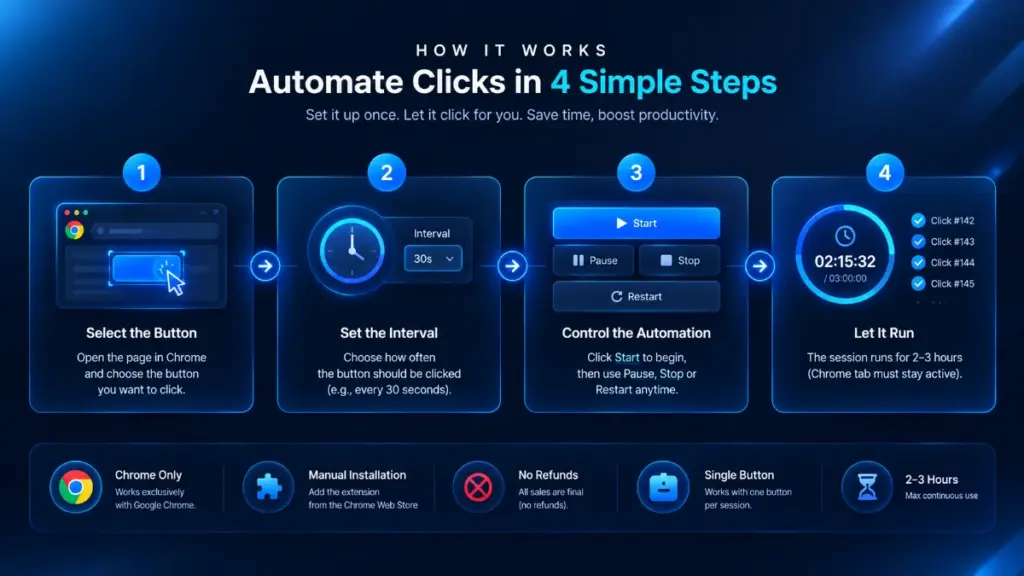
The vendor describes a four-step process:
- Install the extension by uploading it into Chrome Extensions (instructions are included).
- Open the page where you want the repeated clicking.
- Set your interval, click “Select Button,” then click the target button on the page.
- Start and monitor. It runs while the tab stays open, and you can pause, stop, or restart at any time.
Note that installation means loading the extension file yourself rather than installing from the Chrome Web Store. That’s normal for products sold this way, but it’s a step some beginners may find unfamiliar. The vendor says instructions are included.
Main Features
1. Point-and-Choose Button Selection
You click “Select Button” and then click the element you want repeated. No CSS selectors, no code, no guessing.
Practical example: on a page with both a carousel arrow and a pagination button, you can choose the one you actually want.
2. Adjustable Interval (Seconds or Minutes)
You decide how long the extension waits between clicks. A fixed interval is easy to predict, which makes it easy to trust.
Practical example: if a status page updates every 30 seconds, you could set a matching interval so the page keeps refreshing without your hand on the mouse.
3. Start, Pause, Stop, Restart
One-click controls mean you’re never locked into a run. If something looks off, stop it. If you need a break, pause and resume.
For any automation tool, this is the feature I care about most. Control is what separates a helpful tool from a risky one.
4. Visible Clicks
Everything happens in plain sight in your active tab. You can watch each click land, which makes problems easy to catch, like a click hitting the wrong element or a page changing under you.
5. Tab-Based Operation
It runs only while the tab is open. That limits what you can do, since you can’t queue clicks and close your laptop. It also works as a safeguard, because closing the tab ends the session.
6. Works on Standard Pages
The vendor says any page with a clickable element can be a candidate. That’s a reasonable claim for a general click tool, though results will still depend on how each site builds its buttons.
7. Included Documentation
The package includes three supporting items:
- Quick Start Video Guide: a short walkthrough of installing, selecting a button, setting intervals, and starting or stopping.
- Efficiency & Troubleshooting Notes: common setup mistakes and basic fixes.
- Responsible Use Notes: intended use, limitations, and usage reminders.
For a $9.97 tool, having a walkthrough video and troubleshooting notes is a genuine plus.
Benefits: What You Actually Get
| Feature | Real-World Benefit |
|---|---|
| Point-and-choose selection | No scripting or technical setup |
| Adjustable interval | Timing that fits the page you’re working on |
| Start / pause / stop | You stay in charge |
| Visible clicks | Easy to verify what’s happening |
| Tab-only operation | Nothing runs unnoticed in the background |
| Lightweight design | Little to learn and little to slow down |
| Included docs | A faster start and fewer setup mistakes |
Time Savings
The obvious gain is fewer manual clicks. A ten-second chore repeated a few hundred times adds up quickly.
Less Mental Fatigue
Monotonous clicking drains focus in a way that’s out of proportion to the work. Handing it off lets you read, review, or work in another window.
Peace of Mind
Because clicks are visible and controllable, you don’t have to wonder what the extension is doing. That matters when you’re working on pages tied to accounts.
My Experience: How I Evaluated It
Here’s where I’m going to be direct. The details in this article come from the vendor’s own materials, so I won’t claim stopwatch results or tell you I ran it for 40 hours. What I can share is what the documentation tells you to expect and the checks I’d run before relying on the tool. If you’ve used it, replace these with your own findings.
Setup
Installing an extension from a file takes a few extra steps compared with a store install. You typically enable developer mode in Chrome and load the extension manually. The vendor includes instructions and a video, which should help. I’d watch the walkthrough first, since that’s where a first-timer is most likely to stumble.
Interface and Workflow
The flow is straightforward: set an interval, click “Select Button,” click your target, press start. The main thing to test is how reliably the selection step works on the sites you use. Modern sites often rebuild their buttons dynamically, and that’s where click tools can struggle.
What I’d Check First
- Does it pick the right element? Pages with several similar buttons are the real test.
- Does the interval hold? A 10-second setting should feel like 10 seconds.
- Does pause actually pause? It should halt clicking immediately.
- What happens after a page reload? You may need to reselect the button.
- What happens after a couple of hours? The vendor notes it was tested for roughly 2–3 hours of continuous use.
Strengths
The control-first design is the standout. Visible clicks plus one-click start, pause, and stop mean you’re never guessing. Included documentation for a low-cost tool is a bonus.
Weaknesses
It’s limited by design. One button, one interval, one open tab. Anyone who needs a sequence of actions will hit the ceiling quickly.
Ease of Use
Learning Curve
Very gentle. There are three choices to make: the interval, the button, and when to start. If you can set a timer, you can use this.
User Interface
The sales page doesn’t show interface details in text, so I can’t judge the layout. A tool this focused shouldn’t need much: an interval field, a select button, and start/pause/stop controls.
Documentation
Better than I’d expect at this price. A quick start video, troubleshooting notes, and responsible use notes cover the main questions.
Beginner Friendliness
High for use, moderate for installation. Once it’s installed, no coding or workflow-building is needed. The manual file-based install is the one step that may need a little patience.
Performance
Since I haven’t benchmarked it myself, here’s what to watch for rather than results.
- Speed: clicking at fixed intervals is a light task, so the extension shouldn’t put much load on your system. If you run it for hours, glance at Chrome’s Task Manager.
- Stability: the vendor says it was tested for about 2–3 hours of continuous use and recommends restarting the extension for longer sessions. That’s an honest limit, and worth planning around.
- Reliability: results depend on the website. If a page changes layout mid-session, the selected button may no longer be found.
- Tab dependence: a sleeping computer, Chrome updates, or tab discarding can interrupt a session. Keep the tab active if you need long runs.
Pricing
Current Price
The sales page lists a one-time price of $9.97, shown against a “launch pricing” figure of $49.97. I can’t verify how long the discount lasts or whether the higher price was ever charged, so treat the $49.97 number as marketing rather than proof of value. At $9.97, the tool stands or falls on whether it saves you a bit of time.
What’s Included
- The Chrome extension file
- Setup instructions
- A short demo video walkthrough
- Basic usage support
The Checkout Upsell
At checkout, the page mentions a “One-Time Traffic Exposure System,” which it says teaches you to display ads to 2,000–4,000 real platform users per day without paid ad spend. It’s described as offered only at checkout and not shown again.
I can’t evaluate that offer because I haven’t seen its contents, and the traffic figures are the vendor’s claims with no supporting data. It’s separate from the extension, and you don’t need it to use Auto Click. My advice is to skip any upsell until you’ve confirmed the main product suits you.
Refund Policy
There are no refunds. The page states that all sales are final because of instant digital delivery. It does say you can contact support before purchase with compatibility questions, and it encourages you to watch the demo first. Do both.
Value for Money
For a one-time $9.97, it’s reasonable if you have a real repetitive-click task. It’s a poor buy if you’re only curious, given the no-refund terms.
Pros
- Full user control. Start, pause, stop, and restart with one click.
- Visible clicks. Nothing hides in the background, so mistakes are easy to spot.
- You choose the target. Point-and-choose selection means no scripts and no guessing.
- Simple to learn. A short workflow with no coding.
- Low one-time price. No subscription at $9.97.
- Useful documentation. A quick start video, troubleshooting notes, and responsible use notes are included.
- Built-in safety limit. It only runs while the tab is open.
- Honest about limits. The vendor states the Chrome-only limitation and the tested session length up front.
Cons
- No refunds. All sales are final, which raises the stakes even at a low price.
- Chrome only. No support for other browsers.
- Single button, single interval. No multi-step sequences, conditional logic, or randomized timing mentioned.
- Tab must stay open. You can’t schedule clicks and walk away.
- Session length. Tested for about 2–3 hours, with a restart recommended beyond that.
- Manual installation. Loading the extension yourself is less convenient than a store install.
- Unnamed creator. The page footer shows a placeholder brand name, so it’s hard to tell who stands behind it.
- Unverified testimonial. The single customer story has contact details removed and can’t be checked.
- Mismatched legal text. The earnings disclaimer and no-refund notice refer to affiliate promotions and “case studies” that don’t relate to a click extension. It looks like boilerplate reused from another product, which doesn’t inspire confidence in the fine print.
- Narrow demonstrated use. The demo shows the tool on HerculistPlus – TheZone. Check that platform’s rules before using automation there.
Comparison With Competitors
Auto clickers are a crowded category. Here’s how Auto Click compares with the common alternatives.
| Type of Tool | Strength | Weakness vs. Auto Click |
|---|---|---|
| Free auto-click extensions | Cost nothing | Quality, transparency, and support vary widely |
| Macro recorders | Record and replay multi-step actions | Steeper learning curve |
| Desktop auto-clickers | Work across any application | Less browser-aware, easier to misuse |
| Full automation platforms | Scheduling, logic, cloud running | Overkill and often subscription-based |
| Custom scripts | Total flexibility | Requires coding knowledge |
My Take
Free extensions with similar functions exist, so Auto Click isn’t the only option. What you’re paying $9.97 for is a packaged, documented, visible-and-controllable tool with basic support, and that has value for people who don’t want to hunt through store listings.
If your task is “click this one thing every so often,” Auto Click is a sensible pick. If you need multiple steps, overnight runs, or conditional actions, a macro recorder or automation platform is a better fit.
Responsible Use
The vendor stresses that Auto Click is not a bypass, scraping, or exploit tool, and I agree with that framing.
Many websites restrict automated interaction in their terms of service, and some detect and block it. Using a clicker to game rankings, inflate engagement, grab limited stock, or dodge rate limits can get accounts banned and may create legal trouble. That includes platforms built around viewing or clicking, so read the rules before automating anything there.
Stick to pages and workflows you’re entitled to automate, such as your own dashboards, internal tools, and testing environments.
Who Should Buy It?
Auto Click makes sense if you:
- Repeat the same click on a page for minutes or hours
- Test web interfaces and need repeated button presses
- Work with dashboards or status pages that need periodic refreshing
- Want a lightweight tool instead of a full automation suite
- Value seeing and controlling exactly what happens
- Prefer not to write scripts
- Use Chrome as your main browser
- Are comfortable with a one-time, non-refundable purchase
Who Should Skip It?
Look elsewhere if you:
- Need multi-step automation, such as click, type, then submit
- Want tasks to run on a schedule while your computer or browser is closed
- Need randomized delays or conditional logic
- Use Firefox, Safari, Edge, or any browser other than Chrome
- Plan to use it on sites that forbid automation
- Need refunds as a safety net
- Want to test free alternatives first
Frequently Asked Questions
What is Auto Click – Manual Click Assistant?
It’s a Chrome extension that repeatedly clicks a button you select on a web page at an interval you choose, while the tab stays open.
How much does Auto Click cost?
The sales page lists a one-time launch price of $9.97, shown against $49.97. There’s no subscription mentioned.
Does Auto Click offer a refund?
No. The vendor states that all sales are final because of instant digital delivery. Watch the demo and contact support with questions before buying.
Does it work in browsers other than Chrome?
No. It works on Google Chrome only.
Can I stop it once it starts?
Yes. You can start, pause, stop, or restart with one click.
Does it run in the background?
No. It runs only while the tab is open, and the clicks are visible in your active tab.
How long can it run continuously?
The vendor says it was tested for roughly 2–3 hours of continuous use and recommends restarting the extension for longer sessions.
What comes with the purchase?
The Chrome extension file, setup instructions, a short demo video walkthrough, and basic usage support. Supporting documentation includes a quick start guide, troubleshooting notes, and responsible use notes.
Is the “Traffic Exposure System” upsell necessary?
No. It’s a separate offer shown at checkout and isn’t needed to use the extension. The traffic claims are unverified.
Is it allowed on every website?
No. Many sites restrict automated interaction. You’re responsible for following each site’s terms and applicable laws.
🎁 Free Gift Waiting for You!
Before you leave, there’s a free gift waiting for you.
As a thank-you for reading, you can claim my Ultimate All-In-One Digital Marketing Package completely FREE.
🎉 What’s Inside Your Ultimate All-In-One Package
01. 50 AI Digital Product Ideas
A curated collection of highly profitable AI-powered digital product ideas designed for quick implementation and strong profit potential.
02. Digital Sales Mastery
Discover the proven framework behind high-converting sales funnels, persuasive copywriting, and sustainable online revenue growth.
03. Mastering Email List
Advanced strategies for building an engaged email audience, increasing open rates, improving click-through rates, and generating automated income.
04. The Ultimate Faceless Playbook
A complete blueprint for building a profitable online brand and growing on social media without ever showing your face.
🎁 BONUS: Premium Canva Marketing Vault
A premium library of high-converting Canva templates to help you create professional marketing assets, generate more organic traffic, and boost conversions.
💥 Total Package Value: $197
✅ Yours Today: FREE
Claim your complimentary bundle and get instant access to premium resources that can help you create, market, and grow your online business more effectively.
Final Verdict
Auto Click – Manual Click Assistant does one small job and does it in a sensible, transparent way. Choose the button, set the interval, watch the clicks, and stop whenever you like. At $9.97 it’s a low-cost tool with real documentation, which is more than many bargain-priced extensions offer.
Who benefits most: Chrome users with a simple, repetitive click task who want minimal setup and no coding.
Is it worth the price? For the right person, yes. The catch is the no-refund policy. If you’re unsure about compatibility with your target site, ask support before buying and watch the demo closely.
Would I recommend it? With conditions. If you have a clear repetitive-click chore, work in Chrome, and are comfortable with the terms, it’s a fair buy. I’d skip the checkout upsell, keep sessions within the tested 2–3 hour range, and confirm that automation is allowed wherever you plan to use it. For anything multi-step or unattended, choose a macro recorder or automation platform instead.
Provisional rating: 3.5/5. That reflects a focused, honest, limited tool held back by the no-refund terms, the placeholder branding, and the unverified claims around it. I’d revisit the score after extended hands-on testing.
I can also turn this into a Word document or Markdown file, or add an affiliate disclosure once you have your link. If you have your own test notes, send them and I’ll work them into the “My Experience” and “Performance” sections.