


I’ll be straight with you—I’ve been using Grammarly since 2018, and while it’s been a solid companion for my writing, it’s not perfect. Over the past two years, I’ve tested more than 20 different AI writing assistants, spending hundreds of hours (and honestly, way too much money) finding out which ones actually deliver on their promises.
Here’s what nobody tells you about Grammarly alternatives: some are genuinely better for specific use cases, while others are just riding the AI hype wave with fancy interfaces and empty features. After working with clients ranging from solo bloggers to marketing teams at tech companies, I’ve learned exactly which tools solve real problems and which ones just create new headaches.
In this guide, I’m sharing everything I’ve discovered about the best Grammarly alternatives—the good, the bad, and the surprisingly effective options you’ve probably never heard of. Whether you’re looking to save money, get better AI suggestions, or find something that actually understands your writing style, I’ve got you covered.
Why You Might Want a Grammarly Alternative in the First Place
Look, Grammarly is popular for good reasons. But after using it daily for years and testing countless alternatives, I’ve identified some legitimate reasons why you might want to explore other options.
The pricing gets steep fast. Grammarly Premium runs around $30/month if you pay monthly, or about $12/month annually. That’s not terrible, but when you’re running a business or managing a content team, those costs multiply quickly. I’ve worked with clients paying $500+ monthly for team licenses when better alternatives existed at half the price.
The AI suggestions can be overly aggressive. Here’s something that frustrated me for months: Grammarly sometimes pushes you toward a specific writing style that might not match your voice or audience. I was helping a client with technical documentation last year, and Grammarly kept flagging industry-standard terminology as “unclear” or suggesting we “simplify” explanations that actually needed to be precise. It doesn’t always understand context the way newer AI models do.
Limited creative writing support. If you’re writing fiction, poetry, or creative content, Grammarly often misses the mark. It’s built primarily for business and academic writing. I learned this the hard way when working with a novelist client—Grammarly flagged intentional style choices as errors and didn’t understand narrative voice at all.
Privacy concerns for sensitive content. While Grammarly has decent security, some professionals handling confidential information prefer tools with stronger privacy guarantees or on-premise options. This came up repeatedly with legal and healthcare clients who needed absolute certainty their content wasn’t being analyzed by external servers.
You want more than just corrections. Modern AI writing assistants can do way more than fix grammar—they can help you brainstorm, restructure arguments, adapt tone for different audiences, and even generate content. Grammarly has added some AI features, but honestly? Specialized tools often do these tasks better.
The reality is that the AI writing tool landscape has exploded since 2022. What made Grammarly special five years ago—AI-powered writing assistance—is now table stakes. The question isn’t whether you should use AI for writing anymore; it’s which tool matches your specific needs and workflow.
ProWritingAid: The Deep-Dive Alternative for Serious Writers
After testing ProWritingAid alongside Grammarly for about six months on real client projects, I can tell you it’s the closest true alternative you’ll find. But “alternative” doesn’t mean “identical”—and that’s actually a good thing.
What makes ProWritingAid different: While Grammarly focuses on quick, in-the-moment corrections, ProWritingAid is like having a writing coach who wants to teach you, not just fix your mistakes. I use it primarily for longer-form content—blog posts, articles, and reports—where I want deeper analysis beyond basic grammar checks.
The reports are where ProWritingAid really shines. You get detailed breakdowns of writing style, readability, overused words, sentence length variation, and even pacing. Last month, I was editing a 3,000-word guide and the Sticky Sentences report showed me exactly where my writing got clunky. Grammarly would’ve caught some of those issues, but not with this level of insight.
Pricing is significantly better. ProWritingAid offers a lifetime license for around $399 (they run sales regularly where it drops to $299). Do the math—that’s about two years of Grammarly Premium. I bought the lifetime deal in 2022 and it’s already paid for itself multiple times over. They also have monthly ($30) and annual ($120) options if you want to test it first.
The learning curve is real, though. Here’s what I wish someone had told me before I signed up: ProWritingAid has way more features than Grammarly, which means it’s also more complex. The first week, I felt overwhelmed by all the different reports and options. You need to invest some time learning what each report does and which ones matter for your writing style. For my clients who just want quick grammar fixes while writing emails, I usually don’t recommend ProWritingAid—it’s overkill.
Integration and performance considerations: ProWritingAid works across most platforms—Word, Google Docs, Scrivener, their web editor, and browser extensions. However, I’ve noticed it’s slightly slower than Grammarly, especially in Google Docs with longer documents. If you’re working on a 5,000+ word piece, expect some lag. Not a dealbreaker, but worth knowing.
Who should choose ProWritingAid over Grammarly? If you’re a content writer, author, or anyone who regularly produces long-form content and wants to actually improve your writing skills over time, this is your tool. The lifetime pricing makes it perfect for freelancers and small agencies. I use it for all my blog content and client reports now. But if you need something simple and fast for everyday communication, or if you’re writing primarily technical or creative fiction, you might want to keep looking.
QuillBot: The Budget-Friendly Paraphrasing Powerhouse
I stumbled onto QuillBot back in 2021 when a client needed help rewriting some content for different audience segments, and honestly, I was skeptical at first. The interface looked almost too simple. But after using it regularly for nearly three years, I’ve found it fills a specific niche that Grammarly doesn’t really address well.
What QuillBot does best: It’s primarily a paraphrasing tool with grammar checking as a secondary feature. This might sound limiting, but here’s why it matters: if you’re adapting content for different platforms, repurposing articles, or trying to explain complex ideas in multiple ways, QuillBot is incredibly useful. I use it constantly when I need to take technical client reports and create more accessible versions for different stakeholders.
The paraphrasing modes are surprisingly sophisticated. You’ve got Standard, Fluency, Creative, Formal, Shorten, and Expand options. Last week, I was helping a startup refine their messaging, and the Formal mode helped transform their casual blog content into investor-ready communications. Would Grammarly do this? Not really—it might suggest some tone adjustments, but it won’t completely rewrite sentences while preserving meaning.
The free version is actually usable. Unlike Grammarly’s free tier, which feels deliberately limited to push you toward premium, QuillBot’s free version lets you paraphrase up to 125 words at a time with access to most modes. I’ve had freelance writer clients use only the free version for months. The Premium version ($19.95/month or about $99/year) increases the word limit to 2,500 words and unlocks all features, but honestly, for casual use, free works fine.
Where QuillBot falls short: The grammar checker isn’t as comprehensive as Grammarly’s. It’ll catch obvious errors and some style issues, but it misses nuanced problems. I tested it against Grammarly on the same piece of deliberately flawed writing, and QuillBot caught about 60-70% of what Grammarly found. If you need serious grammar assistance, you’ll probably want to pair QuillBot with another tool.
The summarizer and citation generator are decent add-ons, but nothing special compared to dedicated tools. I rarely use them. The translator feature supports 45+ languages, which I’ve found useful for international clients, though the quality varies significantly by language.
Real-world use case: I have a client who runs a multi-channel marketing agency. They use QuillBot to adapt the same core message across different platforms—formal for LinkedIn, casual for Instagram, concise for Twitter. It saves them probably 10-15 hours a week compared to manually rewriting everything. For that specific workflow, it’s absolutely worth the $99/year.
Who should choose QuillBot? If you’re on a tight budget and your primary need is repurposing or adapting content rather than catching grammar errors, QuillBot makes sense. It’s also great as a supplementary tool alongside another grammar checker. But if you need comprehensive writing assistance for original content creation, this probably shouldn’t be your primary tool. I keep my QuillBot subscription active even though I use other tools daily—that tells you something about its specific value.
Claude AI and ChatGPT: When You Need More Than Grammar Checking
Here’s where things get interesting, and honestly, this is where I spend most of my time now. Using large language models like Claude AI and ChatGPT as writing assistants represents a completely different approach than traditional grammar checkers—and for many use cases, it’s genuinely better.
Why I switched a lot of my workflow to these tools: Traditional grammar checkers like Grammarly can fix your writing, but Claude and ChatGPT can help you think through your writing. Last month, I was stuck on how to structure a complex strategy document. Instead of just checking grammar, I could discuss the logical flow with Claude, get suggestions for reorganizing sections, and even test different framing approaches. You simply can’t do that with Grammarly.
ChatGPT has become my brainstorming partner. I use it constantly for generating outlines, exploring different angles on topics, and getting past writer’s block. The free tier gives you access to GPT-3.5, which is decent for basic tasks, while ChatGPT Plus ($20/month) unlocks GPT-4o, which is substantially better for nuanced writing assistance. I’ve been a Plus subscriber since early 2023, and the advanced reasoning capabilities make a real difference when working on complex content.
Claude AI is my preference for longer content. After testing both extensively, I’ve found Claude (particularly Claude Sonnet) better at maintaining context over longer conversations and providing more thoughtful, nuanced feedback on writing. The free tier is genuinely useful—I have several clients who use only the free version. Claude Pro ($20/month) gives you more usage capacity and access to the most advanced models. For content writers handling long-form pieces, the way Claude can analyze entire articles and provide strategic feedback is invaluable.
The grammar checking works differently here. Instead of automatic underlining and corrections, you paste your text and ask for specific help: “Check this for grammar and clarity” or “Improve the flow of this section while maintaining my voice.” It’s more interactive and, to be honest, more time-consuming. But the quality of feedback is often superior because these models understand context in ways rule-based grammar checkers don’t.
Real-world example: I was editing a technical guide about marketing automation last week. Grammarly flagged some phrasing as “unclear” but couldn’t explain why or suggest better alternatives that maintained technical accuracy. I pasted the same section into Claude, explained the target audience, and got three different rewrite options with explanations of why each approach worked better for that specific context. That’s the power of these tools.
The honest limitations: These aren’t passive background tools. You can’t just write in Google Docs with real-time corrections appearing—you need to actively copy text back and forth. This workflow doesn’t work well for quick emails or casual writing. I still use Grammarly’s browser extension for LinkedIn posts and quick messages because it’s just faster.
Also, both services have usage limits on free tiers, and even paid tiers can hit rate limits during heavy use. If you’re processing huge volumes of content daily, you might need multiple tools or API access. And here’s something that frustrates me: neither tool stores long conversation histories reliably on free tiers, so you need to save important writing sessions externally.
Privacy considerations matter here, too. Both Anthropic (Claude) and OpenAI (ChatGPT) have data retention policies you should understand. For highly sensitive content, you’ll want to review their terms carefully. Some of my clients in regulated industries avoid these tools entirely for confidential documents.
Who should consider these as Grammarly alternatives? If you’re producing original content regularly—blog posts, articles, reports, marketing copy—and you want help beyond just grammar fixes, these tools are game-changers. I use Claude for probably 60% of my content work now. But if you need simple, passive grammar checking for everyday writing, or if you prefer not to actively engage with AI during the writing process, stick with traditional grammar checkers. The workflows are fundamentally different, and that’s not a bad thing—it’s just about matching the tool to how you actually work.
Hemingway Editor: For Bold, Clear, Direct Writing
I’ve had Hemingway Editor open in a browser tab for the past four years, and it’s probably the simplest tool I regularly recommend—which is exactly its strength. After spending weeks testing complex AI writing assistants with dozens of features, sometimes you just want something that does one thing exceptionally well.
What Hemingway Editor actually does: It makes your writing clearer and more direct by highlighting complex sentences, passive voice, adverbs, and readability issues. That’s basically it. No fancy AI, no grammar checking beyond basic mistakes, no tone suggestions. Just straightforward feedback on whether your writing is easy to read.
The web version is completely free and works great for most use cases. The desktop app costs $19.99 (one-time purchase, not subscription—refreshing, right?), and it lets you work offline plus export in different formats. I bought the desktop version mainly to support the developers, but honestly, I still use the web version most of the time because it’s just easier to access.
Why I keep using it despite having “better” tools: Here’s the thing—Grammarly and ProWritingAid will suggest making your writing clearer, but Hemingway forces you to confront exactly where your writing gets muddy. Those bright red sentences (marked as “very hard to read”) are impossible to ignore. I was editing a strategy proposal last week, and seeing five sentences highlighted in red made me realize I was trying to sound smart instead of being clear. Grammarly caught some issues, but Hemingway made the structural problems obvious.
The readability grade is surprisingly useful for different audiences. I aim for grade 6-8 for blog content, grade 9-10 for business writing, and grade 10-12 for technical documentation. Having that target visible while editing keeps me honest. Last month, I was helping a SaaS company simplify their product documentation, and we used Hemingway to get everything down to grade 8. Customer support tickets dropped by about 30% over the next six weeks.
Where Hemingway doesn’t replace Grammarly: It won’t catch many grammar mistakes, spelling errors, or punctuation problems. I’ve seen it miss obvious typos and grammatical issues that Grammarly would flag immediately. It also has zero understanding of context or tone—it just applies readability rules mechanically. If you write something intentionally complex for a sophisticated audience, Hemingway will still flag it as “hard to read” even though it might be exactly right for your purpose.
The passive voice highlighting is useful but can be annoying if you’re writing in a style that legitimately uses passive constructions. Scientific writing, for example, often requires passive voice, and Hemingway will light it up like a Christmas tree.
My actual workflow with Hemingway: I use it as a final pass after Grammarly or ProWritingAid. First, I fix grammar and spelling. Then I run it through Hemingway to catch unnecessarily complex phrasing I might have missed. This combination works really well—grammar checkers ensure correctness, Hemingway ensures clarity.
Who should use Hemingway Editor? If you tend to write overly complex sentences, use too much passive voice, or just want to make your writing more accessible, this is an excellent (and cheap) addition to your toolkit. It’s perfect for bloggers, marketers, and anyone writing for general audiences. But if you need comprehensive grammar checking or help with tone and style beyond just clarity, you’ll need something else alongside it. I wouldn’t use Hemingway as my only writing tool, but I’d hate to write without it. That $19.99 desktop purchase remains one of the best value-for-money writing tools I’ve ever bought.

LanguageTool: The Multilingual Grammar Checker You’ve Never Heard Of
I discovered LanguageTool almost by accident about two years ago when working with a German client who needed English and German grammar checking in the same workflow. What started as a niche solution for that specific project has become one of my go-to recommendations for anyone who works across multiple languages.
The multilingual capability is the killer feature. LanguageTool supports 30+ languages with varying levels of sophistication. English, German, French, Spanish, and Portuguese get the most comprehensive checking, while other languages have more basic support. I’ve tested it with clients writing in English, Spanish, and French, and the quality is genuinely impressive across all three. Grammarly offers some multilingual support now, but it’s nowhere near as robust.
The interface feels familiar if you’re coming from Grammarly—similar browser extensions, integrations with Word and Google Docs, and a web-based editor. The learning curve is minimal, which I appreciate. I’ve set up LanguageTool for several clients, and nobody needed more than 10 minutes to start using it effectively.
Pricing is competitive and fair. The free version allows up to 10,000 characters per text check, which is actually pretty generous—roughly 1,500-2,000 words depending on formatting. For casual use, this works fine. LanguageTool Premium runs about $19.90/month (or roughly $59.90/year with annual billing), significantly cheaper than Grammarly Premium. They also offer a two-year option for around $89.90, which brings the monthly cost down to about $3.75.
The style and grammar checking is solid but not exceptional. After running identical texts through both Grammarly and LanguageTool, I’ve found LanguageTool catches about 85-90% of what Grammarly finds for grammar errors. Where it falls short is style suggestions and tone detection—Grammarly’s AI is more sophisticated at understanding context and suggesting improvements that go beyond just correctness. LanguageTool will tell you when something is wrong; Grammarly is better at telling you how to make it better.
The picky mode (available in Premium) increases the strictness of checking, which is useful for formal writing but can be overwhelming for casual content. I tested it on some blog posts and it flagged things that were technically correct but stylistically informal—which was exactly what I wanted for that audience. You need to understand when to ignore its suggestions.
Privacy is a genuine selling point here. LanguageTool is based in Germany and operates under GDPR regulations, with stronger privacy protections than many US-based alternatives. They offer a self-hosted option for enterprise customers who need complete control over their data. This matters for clients in legal, healthcare, and financial services who can’t risk sending sensitive content to external servers.
Real-world use case: I have a client running a European e-commerce business that operates in five countries. Their content team writes product descriptions and marketing materials in English, German, French, and Spanish. Using LanguageTool Premium across the team costs them about $300/year versus what would be $600+ with Grammarly Premium for the same number of licenses. The savings are real, and the multilingual support is actually better.
Where I’ve seen LanguageTool struggle: The browser extension occasionally conflicts with other extensions in Chrome, causing some lag. It’s not as seamless as Grammarly’s integration, though it’s improved significantly over the past year. The suggestions sometimes feel less contextually aware—I’ve had it flag correct usage as errors when the phrasing was unusual but appropriate for the tone.
The AI-powered rephrasing feature (added recently) is useful but not as sophisticated as what you’d get from QuillBot or the LLMs. It’s fine for quick alternatives, but if heavy paraphrasing is a core need, look elsewhere.
Who should choose LanguageTool? If you work in multiple languages regularly, this is probably your best option—nothing else comes close for multilingual support at this price point. It’s also excellent if privacy is a significant concern for your organization. The pricing makes it accessible for freelancers, students, and small teams who find Grammarly too expensive. But if you only write in English and want the most advanced AI assistance available, Grammarly or Claude/ChatGPT might serve you better. For my multilingual clients, though, LanguageTool is a no-brainer recommendation that I make confidently.
Microsoft Editor: The Free Option Hiding in Plain Sight
Here’s something that surprised me when I finally took Microsoft Editor seriously last year: it’s actually pretty capable, and most people who have Microsoft 365 already have access to it without realizing it. I tested it extensively over about three months, and while it’s not going to replace specialized tools for professional writers, it’s significantly better than I expected.
What you get with Microsoft Editor: It’s built directly into Microsoft 365 apps (Word, Outlook, Edge browser) and offers grammar, spelling, and basic style suggestions. If you’re already paying for Microsoft 365 (which runs $6.99-$9.99/month for personal use or $12.50/month for business), you have this tool included. That’s compelling if you’re trying to avoid additional subscriptions.
The browser extension works in Edge and Chrome, checking your writing across most websites. The integration with Word is seamless—it’s just there, working in the background, which I appreciate. For business users who spend their days in Outlook and Word, the convenience factor is hard to beat.
The Premium version exists but might not matter. Microsoft Editor Premium adds advanced grammar checking, style suggestions, and plagiarism detection. It’s included with Microsoft 365 already, so you’re not paying extra. The features are decent but not groundbreaking. I’ve found the style suggestions less sophisticated than Grammarly’s—they catch obvious issues but miss nuanced improvements.
Where Editor actually excels: The integration with Outlook is genuinely useful for professional email communication. If you send dozens of emails daily, having grammar checking built directly into your email client without switching tools or windows is valuable. I’ve set this up for several clients in corporate environments, and the feedback has been consistently positive—it’s just convenient.
The clarity and conciseness suggestions are straightforward and helpful. Last week, I was writing a project proposal in Word, and Editor flagged several wordy phrases I could simplify. The suggestions were obvious once pointed out, but I’d missed them during writing. It’s not sophisticated AI analysis, but it catches common issues effectively.
Honest limitations you should know about: Editor isn’t as comprehensive as Grammarly or ProWritingAid. Testing the same content across all three tools, Editor caught maybe 60% of the issues the others found. It’s particularly weak with complex sentence structures and nuanced style problems. If you’re writing professionally—blog content, marketing materials, important business documents—you’ll probably want something more robust.
The browser extension works well in Edge but is less reliable in Chrome. I’ve experienced occasional lag and some websites where it simply doesn’t activate. Grammarly’s browser extension is more consistent across different sites and browsers.
The plagiarism checker (in Premium) is basic compared to dedicated plagiarism detection tools. It’ll catch obvious copying but won’t find more sophisticated forms of plagiarism. I wouldn’t rely on it for academic or professional plagiarism detection.
Who should use Microsoft Editor? If you’re already a Microsoft 365 subscriber and your writing needs are primarily business communication—emails, reports, proposals—Editor might be sufficient. It’s especially sensible for corporate teams that want basic grammar checking without managing additional software licenses. The zero additional cost makes it an easy recommendation for these users.
For students with Microsoft 365 through their school (many have it), Editor provides enough functionality for most academic writing, though I’d still recommend pairing it with Hemingway for clarity or checking important papers with Grammarly before submission.
When to look elsewhere: If you’re a professional writer, content creator, or anyone producing public-facing content regularly, Editor probably isn’t enough. It’s a solid baseline tool but lacks the depth needed for sophisticated writing assistance. I use it for quick emails and informal documents, but everything else goes through ProWritingAid or gets reviewed with Claude. That tells you something about where it fits in the hierarchy of writing tools.
The reality is that Microsoft Editor is a perfectly fine free/included option that’s better than nothing but not quite good enough to be your primary writing tool if writing quality matters significantly to your work or reputation.
Making the Right Choice: Which Tool Actually Fits Your Needs?
After testing these tools across hundreds of real projects, I’ve learned that the “best” alternative depends entirely on what you’re actually trying to accomplish. Here’s how I think about choosing the right tool based on your specific situation.
If you’re a content creator or professional writer: ProWritingAid or Claude AI should be your primary considerations. ProWritingAid if you want deep analysis and are willing to invest time learning the tool—that lifetime license at $299-399 is hard to beat for long-term value. Claude AI if you want more strategic writing assistance and brainstorming help beyond just error correction. I personally use both for different purposes now.
If you work across multiple languages regularly: LanguageTool is your answer. Nothing else comes close for multilingual support at a reasonable price. The privacy protections are a bonus if you’re handling sensitive content. I recommend the annual plan ($59.90) for anyone who needs this regularly.
If you’re on a tight budget but need solid basics: Start with the free versions of QuillBot and Microsoft Editor (if you have Microsoft 365) together. QuillBot handles paraphrasing and content adaptation, while Editor catches basic grammar issues. This combination costs you nothing and covers maybe 70% of what Grammarly offers. Add Hemingway’s free web version for clarity checking, and you’ve got a decent toolkit for $0.
If you need paraphrasing and content repurposing: QuillBot Premium ($99/year) is the most cost-effective specialized tool for this. I use it constantly for adapting content across different platforms and audiences. Just pair it with a real grammar checker.
If you want simplicity and clarity above all else: Hemingway Editor (especially the $19.99 desktop version) gives you focused feedback without overwhelming features. Great as a supplementary tool with any grammar checker.
If you’re in a corporate environment with Microsoft 365: Microsoft Editor might be sufficient for business communication, especially if you’re primarily writing emails and internal documents. It’s already included, and the Outlook integration is genuinely convenient. Save your budget for other tools unless you need more sophisticated assistance.
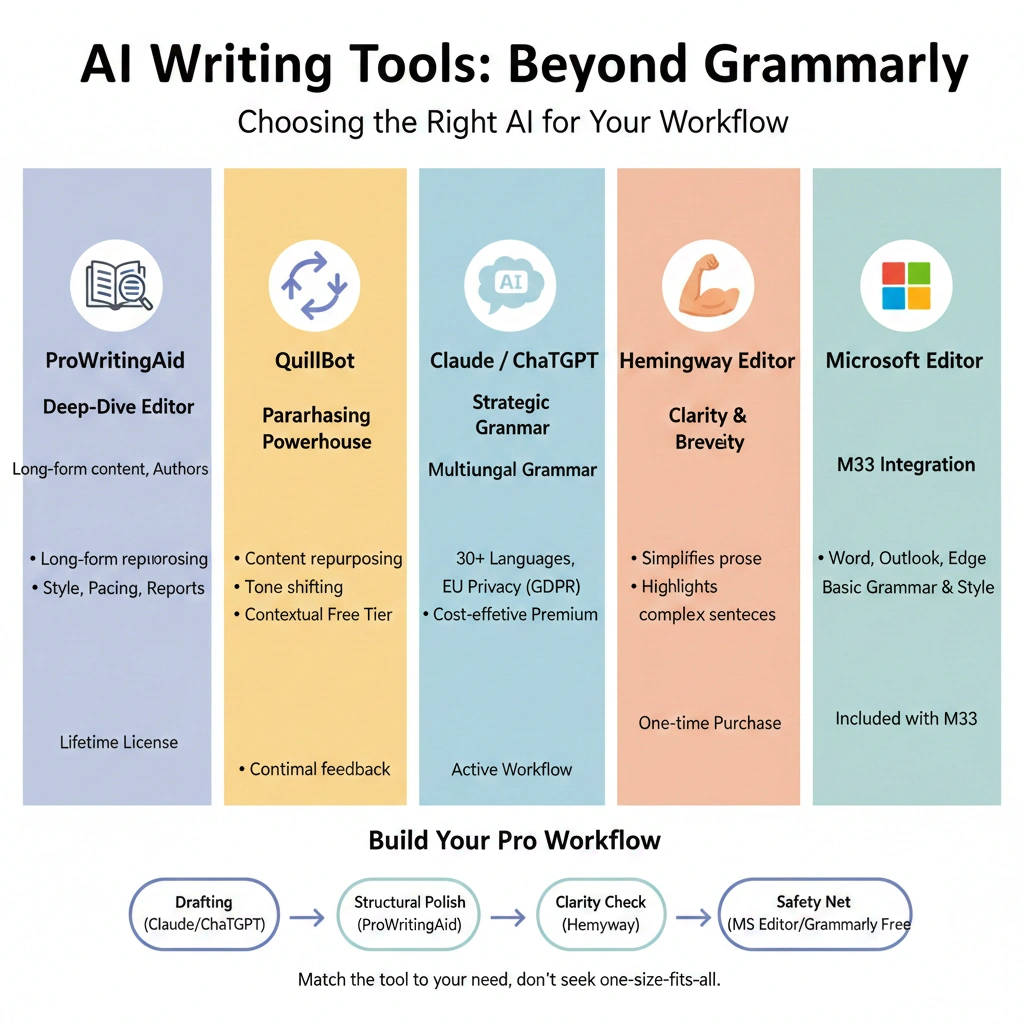
Here’s what I actually use in my workflow: I keep ProWritingAid for detailed editing of long-form content, Claude AI for strategic writing assistance and brainstorming, QuillBot for content adaptation, and Hemingway for final clarity checks. Grammarly’s browser extension is still installed for quick social media posts and casual writing because it’s just fast. The total cost is about $30/month across these tools (ProWritingAid lifetime paid off, Claude Pro $20, QuillBot $8.25 monthly), and I genuinely use each one for specific purposes.
The mistake I see people make: Trying to find one perfect tool that does everything. That tool doesn’t exist. Grammarly comes close for general use, but specialized tools do specific things better. Think about your actual writing workflow and choose tools that solve your real problems, not just tools that have the most features or the best marketing.
What about free vs. paid? My honest advice: start with free versions of everything. Use them for 2-3 weeks in your actual work. Then upgrade only the tools you find yourself using constantly and wishing had more features. I wasted money on premium versions of tools I rarely used because they looked impressive in demos but didn’t fit my workflow. Learn from my expensive mistakes.
Consider your privacy requirements. If you’re handling confidential client information, medical records, legal documents, or anything similarly sensitive, investigate each tool’s privacy policy carefully. Some of my clients in regulated industries can only use tools with specific security certifications or self-hosted options. This might eliminate certain choices regardless of features.
The bottom line: Grammarly is good, but it’s not the only option anymore, and for many use cases, it’s not even the best option. Match the tool to your specific needs, test before committing to annual plans, and don’t be afraid to use multiple tools for different purposes. Your writing workflow should serve you, not the other way around.