

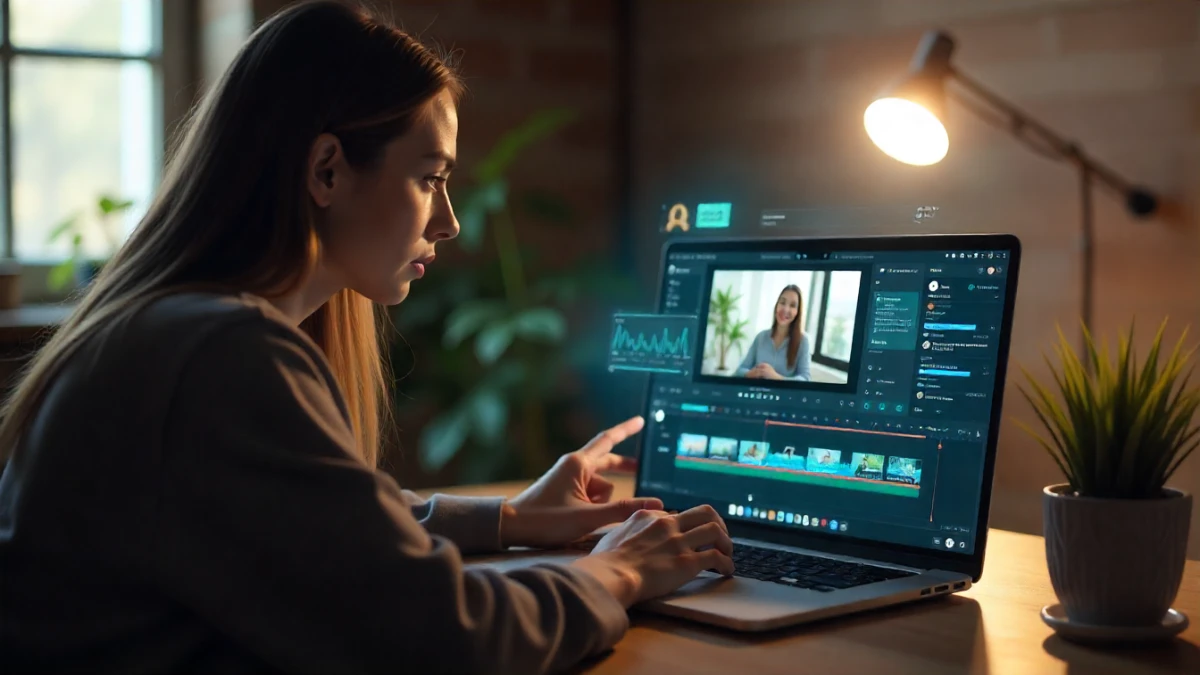
AI video editors have come a long way, and I’ve tested a lot of them over the past few years. As someone who creates content for clients ranging from solo entrepreneurs to mid-sized companies, I’ve watched the AI video editing space explode from “interesting novelty” to “genuinely useful productivity tool” in about 18 months.
But here’s the thing nobody tells you: not all AI video editors are created equal. Some are incredible at generating social media clips but terrible at long-form content. Others have powerful AI features that sound amazing in demos but are frustratingly slow in real-world use.
I’ve spent the last two months putting seven popular AI video editors through their paces—editing everything from podcast clips to product demos to YouTube videos. What you’re about to read isn’t based on marketing claims or quick demos. These are insights from actually sitting down and editing dozens of videos with each tool, hitting roadblocks, discovering workarounds, and occasionally wanting to throw my laptop out the window.
By the end of this article, you’ll know exactly which AI video editor fits your needs, budget, and skill level. Let’s dig in.
What Makes an AI Video Editor Actually “AI-Powered”?
Before we jump into specific tools, let me clarify what I mean by “AI video editor” because the term gets thrown around pretty loosely these days.
Traditional video editing requires you to manually cut clips, adjust timing, add transitions, sync audio, create captions, and export everything yourself. It’s time-consuming and requires decent technical skills.
AI-assisted video editing uses artificial intelligence to automate or simplify parts of this process. The most common AI features I’ve found genuinely useful include:
- Auto-transcription and captions: Converts speech to text automatically with surprisingly good accuracy
- Smart scene detection: Identifies natural cut points in your footage
- Background removal: Removes or replaces backgrounds without green screens
- Text-to-video generation: Creates video content from text prompts (still early days, honestly)
- Auto-resizing and reformatting: Adapts content for different platforms (YouTube to TikTok, for example)
- Voice cloning and AI voiceovers: Generates realistic narration without recording
- Object removal: Erases unwanted elements from footage
The best AI video editors I’ve tested combine several of these features into workflows that genuinely save time. The worst ones slap “AI” on basic automation and charge premium prices.
The 7 AI Video Editors I Tested (Ranked by Use Case)
After editing approximately 50 videos across different tools and use cases, here’s my honest assessment. I’m organizing these by who they’re best for rather than arbitrary rankings, because the “best” tool really depends on what you’re trying to do.
1. Descript – Best for Podcasters and Interview Content
Pricing: Free plan available; Creator plan $12/month; Pro plan $24/month
What surprised me most: You edit the video by editing the transcript. It sounds weird until you try it, then you realize it’s genius for long-form content.
I’ve been using Descript for about eight months now, primarily for client podcast editing. The core concept is that Descript transcribes your video automatically, then lets you edit the footage by deleting words from the transcript. Remove a sentence? The corresponding video clip disappears. It’s incredibly intuitive once you wrap your head around it.
Real-world example: Last month, I edited a 45-minute interview that would’ve taken me 3-4 hours in Premiere Pro. With Descript, I had a polished final cut in about 90 minutes. The AI automatically removed filler words (“um,” “uh,” “like”), smoothed out awkward pauses, and even generated eye contact correction to make the speaker look at the camera.
The good stuff:
- Transcription accuracy is excellent (95%+ in my testing)
- Studio Sound feature cleans up audio dramatically
- Overdub lets you fix mistakes by typing corrections
- Screen recording built in
- Collaboration features actually work well
The frustrating parts:
- Can be slow with 4K footage on older machines
- Export times are longer than I’d like
- Advanced color grading is limited
- The interface feels cluttered once you have 10+ projects
Who should use it: If you’re editing podcasts, interviews, educational content, or anything with lots of dialogue, Descript is honestly a no-brainer. Solo content creators and small teams will love it. But if you’re doing highly visual content like travel vlogs or product demos with minimal talking, there are better options below.
2. Runway ML – Best for Creative Effects and Experimental Projects
Pricing: Free plan (limited); Standard $12/month; Pro $28/month; Unlimited $76/month
What surprised me most: The Gen-2 text-to-video feature actually produces usable results now. Six months ago, it was more “interesting experiment” than “practical tool.”
I’ll admit, I was skeptical of Runway when I first heard about it. A lot of the early AI video generation tools felt gimmicky. But after using it for client projects requiring unique visual effects, I’m genuinely impressed by what it can do.
Real-world example: A client needed a product video with a futuristic tech aesthetic. Using Runway’s inpainting and motion tracking tools, I added holographic-style elements and removed unwanted background objects in minutes—effects that would’ve required After Effects expertise and hours of work.
The good stuff:
- Incredibly powerful AI effects (background removal is best-in-class)
- Text-to-video generation is improving rapidly
- Video upscaling and interpolation work well
- Great for experimental, artistic projects
- New features added frequently
The frustrating parts:
- Steep learning curve for advanced features
- Credit-based system can get expensive quickly
- Results can be unpredictable—you’ll need multiple attempts
- Not ideal for straightforward editing workflows
- Processing times vary wildly
Who should use it: Creative professionals, video artists, and agencies working on projects that need cutting-edge visual effects. If you’re creating standard social media content or business videos, Runway is probably overkill. But for unique creative work, it’s unmatched.
3. Opus Clip – Best for Repurposing Long Videos into Social Clips
Pricing: Free plan (limited); Starter $9/month; Professional $29/month
What surprised me most: The AI genuinely understands context and picks compelling moments, not just random clips.
Here’s a tool that solves one specific problem extremely well: turning long-form videos into short social media clips. I tested Opus Clip by uploading a 30-minute webinar, and within about five minutes, it generated twelve ready-to-post clips with captions, hooks, and even emoji overlays.
Real-world example: A client records hour-long training sessions but needed content for Instagram Reels and TikTok. Using Opus Clip, we went from one video a month to posting 3-4 clips per week. The AI identified the most engaging segments and formatted them automatically.
The good stuff:
- Incredibly fast processing (5-10 minutes for long videos)
- AI-generated hooks and captions are surprisingly good
- Auto-resizing for different platforms works flawlessly
- Virality score helps prioritize best clips
- Minimal editing knowledge required
The frustrating parts:
- Limited customization options
- Sometimes picks odd moments (requires manual review)
- Template designs feel samey after a while
- Not suitable for videos without clear dialogue
- Captions occasionally miss context
Who should use it: Content creators, coaches, and businesses with existing long-form video content (podcasts, webinars, presentations) who need social media clips quickly. If you’re starting from scratch or need heavily customized edits, you’ll want something more flexible.

4. Adobe Premiere Pro with AI Features – Best for Professional Editors
Pricing: $22.99/month (individual); included in Creative Cloud ($54.99/month)
What surprised me most: Adobe’s integration of AI feels more practical than flashy, which is actually refreshing.
I know, I know—Premiere Pro isn’t purely an “AI video editor.” But Adobe has been quietly adding powerful AI features through their Sensei technology, and if you’re already familiar with professional editing software, it’s worth considering.
Real-world example: The Auto Reframe feature saved me probably 15 hours last quarter when reformatting client videos for multiple platforms. The AI tracked subjects intelligently and adjusted framing automatically for vertical, square, and horizontal formats.
The good stuff:
- Industry-standard tool with full professional capabilities
- AI features enhance rather than replace manual control
- Text-based editing recently added
- Speech to Text is accurate and fast
- Integrates perfectly with other Adobe apps
- Neural filters for color matching and effects
The frustrating parts:
- Steep learning curve if you’re new to video editing
- Expensive, especially if you only need basic features
- AI features aren’t as automated as dedicated AI tools
- Requires powerful hardware for smooth performance
- Subscription fatigue is real
Who should use it: Professional video editors, creative agencies, and anyone who needs ultimate control and flexibility. If you’re just starting out or editing simple content, honestly, this is overkill and you’ll be paying for features you don’t use.
5. Pictory – Best for Text-to-Video Content Creation
Pricing: Free trial; Standard $19/month; Premium $39/month
What surprised me most: You can literally paste a blog post and get a video in 10 minutes. It’s not perfect, but it’s genuinely useful.
Pictory takes a different approach—instead of starting with video footage, it creates videos from text, articles, or scripts. I’ve been testing it for client blog-to-video projects, and while it’s not replacing custom video production, it’s a solid option for certain use cases.
Real-world example: A client wanted to turn their top-performing blog posts into YouTube videos without filming. Using Pictory, we converted five articles into videos with stock footage, AI voiceover, and captions in about two hours total. The results weren’t cinematic, but they worked for their audience.
The good stuff:
- Extremely fast workflow for text-based content
- Massive stock footage library included
- AI voiceover options sound natural
- Great for creating videos at scale
- Templates for different video types
- Automatic scene selection based on text
The frustrating parts:
- Videos can feel generic without customization
- Limited control over footage selection
- AI sometimes chooses irrelevant stock clips
- Voiceover options lack personality
- Not suitable for original footage editing
Who should use it: Bloggers, marketers, and businesses who need to create video content quickly from existing written material. If you’re sitting on hundreds of blog posts and want to expand into video without filming, Pictory is worth trying. But if you’re working with original footage, look elsewhere.
6. CapCut – Best Free Option for Social Media Creators
Pricing: Free; Pro version $7.99/month
What surprised me most: A completely free tool with this many AI features? I kept waiting for the catch.
CapCut is ByteDance’s (TikTok’s parent company) entry into video editing, and honestly, the value proposition is almost absurd. For free, you get auto-captions, background removal, AI effects, and a surprisingly capable editor.
Real-world example: I recommended CapCut to a client who was just starting out and needed to edit TikTok content on a tight budget. Three months later, they’re still using it and haven’t hit any limitations that justify upgrading to paid tools.
The good stuff:
- Completely free with no watermarks
- Auto-captions work remarkably well
- Trending effects updated constantly
- Mobile and desktop versions
- Background removal included
- Keyframe animation is intuitive
- Direct posting to TikTok
The frustrating parts:
- Chinese-owned (privacy concerns for some users)
- Limited advanced features compared to paid tools
- Template-heavy approach can limit creativity
- Occasional stability issues on desktop
- Export quality caps on free version for some features
Who should use it: Beginners, social media creators, and anyone on a tight budget who primarily creates short-form content. The fact that it’s free makes it perfect for testing video editing before investing in paid tools. But for professional client work, you might want something with more capabilities.
7. Synthesia – Best for AI Avatar Presentations
Pricing: Personal $22/month; Enterprise (custom pricing)
What surprised me most: The AI avatars have gotten scarily realistic. We’re past the uncanny valley with the latest versions.
Synthesia is different from everything else on this list—it’s specifically designed for creating presentation-style videos with AI avatars. No filming required. You type a script, choose an avatar, and it generates a video of someone presenting your content.
Real-world example: A client needed training videos translated into five languages but didn’t want to hire multilingual presenters. Using Synthesia, we created the same video with AI avatars speaking each language naturally. Total time: about three hours for all five versions.
The good stuff:
- No camera or filming equipment needed
- Multilingual capabilities (120+ languages)
- Professional-looking avatars
- Perfect for training, explainer, and educational content
- Can create custom avatars of yourself
- Consistent quality across all videos
The frustrating parts:
- Expensive compared to traditional editing tools
- Limited to presentation-style videos
- Avatars still have occasional unnatural movements
- Can’t edit existing video footage
- Results feel corporate/sterile for some use cases
- Mouth movements occasionally mismatch
Who should use it: Corporate training departments, educational content creators, and international businesses needing multilingual videos. If you need traditional video editing or creative content, this isn’t the right tool. But for scalable presentation videos, it’s incredibly efficient.
How I Actually Tested These Tools
Let me pull back the curtain on my testing process because I know “I tested these” can mean anything from “I watched a demo” to “I used it daily for months.”
Here’s what I did:
The Standard Edit Test: I took the same 10-minute podcast interview and edited it with each tool, timing how long it took to produce a polished final cut. I also noted which features I actually used versus which were just marketing fluff.
The Social Media Test: I created a 60-second Instagram Reel using each tool’s AI features, evaluating ease of use, output quality, and how many manual adjustments were needed.
The Real Client Project Test: This was the most revealing. I used each tool for actual paid client work over 6-8 weeks, noting frustrations, workflow bottlenecks, and features I genuinely appreciated.
The Learning Curve Test: I asked my assistant (who has minimal video editing experience) to create a simple video with each tool and timed how long it took them to feel comfortable.
I also kept detailed notes on pricing, export quality, rendering speed, customer support responsiveness (I contacted each one with questions), and how often the AI features actually worked as advertised versus requiring manual fixes.
Which AI Video Editor Should You Actually Choose?
Okay, so you’ve read about all seven tools. Now what? Here’s my honest recommendation framework based on your specific situation:
If you’re editing podcasts or interview content: Descript is the clear winner. The text-based editing is perfect for dialogue-heavy content.
If you’re a social media creator on a budget: Start with CapCut. It’s free, capable, and you can always upgrade later.
If you need to repurpose long videos into clips: Opus Clip will save you hours every week. It’s worth the $29/month if you have existing content.
If you’re creating training or presentation videos at scale: Synthesia is expensive but incredibly efficient for this specific use case.
If you’re turning blog content into videos: Give Pictory a try. The text-to-video workflow is unmatched.
If you’re a professional editor or creative agency: Stick with Premiere Pro and leverage its AI features. You need the control and flexibility.
If you’re working on creative projects needing unique effects: Runway ML is your playground, but expect a learning curve.
My personal stack: I primarily use Descript for podcast editing, Opus Clip for social media repurposing, and occasionally Runway for creative client projects. I don’t use just one tool—I use the right tool for each job.
The Reality Check Nobody Talks About
Here’s something I’ve learned after testing dozens of AI tools: AI video editing doesn’t mean “no editing required.”
These tools make certain tasks faster and easier, but they’re not magic. You’ll still need to:
- Review and correct AI-generated captions (accuracy is good but not perfect)
- Make creative decisions about pacing, tone, and style
- Manually adjust when the AI makes odd choices
- Understand basic editing concepts to get good results
The best AI video editors are augmentation tools, not replacement tools. They handle tedious tasks (transcription, captioning, resizing) so you can focus on creative decisions. If you’re expecting to upload raw footage and get a perfect video without any input, you’ll be disappointed with every tool on this list.
Also, a reality check on pricing: while several tools offer free plans, you’ll hit limitations quickly if you’re serious about video content. Budget $10-30/month for a tool that matches your needs. It’s worth it for the time savings alone.
Conclusion
After spending way too many hours testing AI video editors, here’s what I’m confident saying: the technology has reached a point where it genuinely improves workflows rather than just adding complexity. But choosing the right tool matters enormously.
The three key takeaways from my testing:
- Match the tool to your content type: Don’t try to force a podcast editing tool to work for social media clips or vice versa. Specialized tools work better than “do everything” solutions.
- Start with free trials: Almost every tool I tested offers free plans or trials. Spend a week actually using 2-3 options before committing. Your specific workflow will determine which tool feels right.
- AI features are only valuable if you use them: Don’t pay for 50 AI features if you only need automatic captioning. Pick the tool that does your most time-consuming tasks well.
Your next step: Pick one or two tools from this list that match your primary use case, sign up for free trials, and edit a real project with each one. You’ll know within a week which tool clicks for you.
And look, if you’ve tested other AI video editors or have experiences with these tools that differ from mine, I’d genuinely love to hear about it. The space is evolving so rapidly that what’s true today might change in six months. That’s both exciting and exhausting.
What AI video editor are you currently using? What’s working well, and what’s driving you crazy? The conversation continues in the comments.