


I’ve been testing cloud storage solutions for the better part of seven years now, and here’s something that might surprise you: most people are worried about the wrong security features. Last month, I had a client frantically asking whether their cloud provider used 256-bit or 512-bit encryption—meanwhile, they were sharing files via public links with no expiration dates. The reality? Secure cloud storage isn’t just about military-grade encryption. It’s about finding a solution that matches how you actually work while keeping your data protected from real-world threats.
In this guide, I’m breaking down everything I’ve learned from testing dozens of cloud storage platforms, making expensive mistakes, and helping clients migrate sensitive data. We’ll cover what security features genuinely matter, which providers deliver on their promises, and—critically—where most services fall short. Whether you’re protecting client files, personal documents, or company IP, you’ll walk away knowing exactly what to look for and which solutions are worth your money.
Why Standard Cloud Storage Security Isn’t Enough Anymore
Here’s the thing most cloud storage providers won’t tell you upfront: their default security settings are designed for convenience, not maximum protection. I learned this the hard way back in 2019 when a client’s Dropbox account got compromised through a weak password. The files themselves were encrypted, sure, but that didn’t matter when someone could just log into the account.
The modern threat landscape has evolved. We’re not just worried about hackers breaking encryption anymore. The real risks include:
- Account takeovers through phishing or credential stuffing (this is way more common than brute-force attacks)
- Insider threats where legitimate users mishandle or leak data
- Supply chain vulnerabilities in the apps and integrations you connect to your storage
- Compliance failures that can result in massive fines for businesses
- Government data requests depending on where your provider operates
What surprised me most when researching secure cloud storage reviews was how few providers offer zero-knowledge encryption by default. This means the company can technically access your files—they hold the encryption keys. For personal photos? Maybe that’s fine. For client contracts, financial records, or sensitive research? That’s a problem.
The providers I recommend most frequently—Sync.com, Tresorit, and pCloud’s encrypted folders—all offer true zero-knowledge architecture. Even their own employees can’t read your files. But here’s where it gets interesting: this extra security comes with trade-offs. You can’t reset your password without losing access to everything. Search functionality gets limited. Some convenient features just don’t work.
In my experience testing dozens of these tools, the sweet spot is finding a provider that lets you choose your security level. Need convenience for everyday files? Use standard encryption. Working with confidential data? Enable zero-knowledge for specific folders. Not every provider offers this flexibility, and it’s one of the first things I check now.
The 5 Security Features That Actually Protect Your Data
After reviewing countless secure cloud storage options, I’ve identified five features that separate genuinely secure platforms from those just checking marketing boxes. I’m going to be straight with you—if a provider doesn’t nail at least four of these, I typically recommend looking elsewhere.
1. Zero-Knowledge End-to-End Encryption
This is non-negotiable for truly sensitive data. With zero-knowledge encryption, files are encrypted on your device before upload, and only you hold the decryption keys. The provider literally cannot access your data, even if compelled by law enforcement or compromised by hackers.
Sync.com and Tresorit implement this beautifully. When I tested Sync.com last year, I intentionally contacted their support asking them to recover a file I’d “lost.” Their response? “We can’t access your files—that’s the point.” Perfect answer.
The downside: forget your password, and your data is gone forever. There’s no recovery process. I recommend using a password manager (I use 1Password) to store your master password securely. Also, some AI-powered features like automatic photo tagging won’t work since the provider can’t “see” your files.
2. Two-Factor Authentication (2FA) with Backup Codes
Look, I’ll be completely honest—most account breaches happen because of weak or reused passwords, not because someone cracked 256-bit encryption. That’s why 2FA is arguably more important for day-to-day security than the encryption algorithm.
But here’s what nobody tells you: not all 2FA is created equal. SMS-based 2FA is better than nothing but vulnerable to SIM-swapping attacks. I only recommend providers offering authenticator apps (like Google Authenticator or Authy) or hardware security keys (YubiKey support is ideal).
Just as critical: backup codes. Last month, I watched a colleague get locked out of their account when their phone died. No backup codes saved. Hours of frustration followed. Every secure cloud storage solution worth its salt provides one-time backup codes during 2FA setup. Screenshot them. Print them. Store them somewhere safe.
3. Granular Access Controls and Link Expiration
This is where I see the most security failures in real-world usage. You’ve probably done this: quickly shared a client file via a public link to meet a deadline. Did you set an expiration date? Add a password? Probably not—I didn’t either until I learned better.
Premium providers like Tresorit and MEGA let you:
- Set automatic link expiration (24 hours, 7 days, etc.)
- Require passwords for shared links
- Limit the number of downloads
- Revoke access instantly from a central dashboard
- See exactly who accessed what and when
I tested this extensively with pCloud. Their link management interface shows every active share, when it was created, and how many times it’s been accessed. Being able to bulk-expire old links with two clicks? That’s the kind of practical security that actually gets used.
4. Client-Side Encryption Options
Here’s something interesting I discovered while comparing providers: some offer client-side encryption as an optional add-on rather than default behavior. pCloud’s “Crypto” feature costs extra ($125/year or $500 lifetime). MEGA includes it free but makes you manually enable it for specific folders.
Why does this matter? Because most people don’t need maximum security for everything. Your family photos? Standard encryption is probably fine. Tax returns and passport scans? Those need client-side encryption.
The best implementations let you choose on a folder-by-folder basis. When testing Sync.com, I loved that I could keep shared collaboration folders accessible (with standard encryption) while locking down personal documents with zero-knowledge protection. This flexibility means you don’t sacrifice usability for security across your entire storage.
5. Comprehensive Activity Logs
This feature flies under the radar in most secure cloud storage reviews, but it’s saved me multiple times. Detailed activity logs show every login attempt, file access, share creation, and download—with timestamps and IP addresses.
Why does this matter? Because security isn’t just about prevention; it’s about detection. Last year, I noticed unusual login attempts on a client’s account through the activity log. Turns out their credentials had appeared in a data breach from an unrelated service. We changed passwords immediately and enabled 2FA. Without those logs, we wouldn’t have caught it until actual damage occurred.
Tresorit excels here. Their logs are searchable, exportable, and ridiculously detailed. I can see exactly when someone opened a file, not just when they downloaded it. For businesses dealing with compliance requirements (HIPAA, GDPR, etc.), this kind of audit trail is essential.
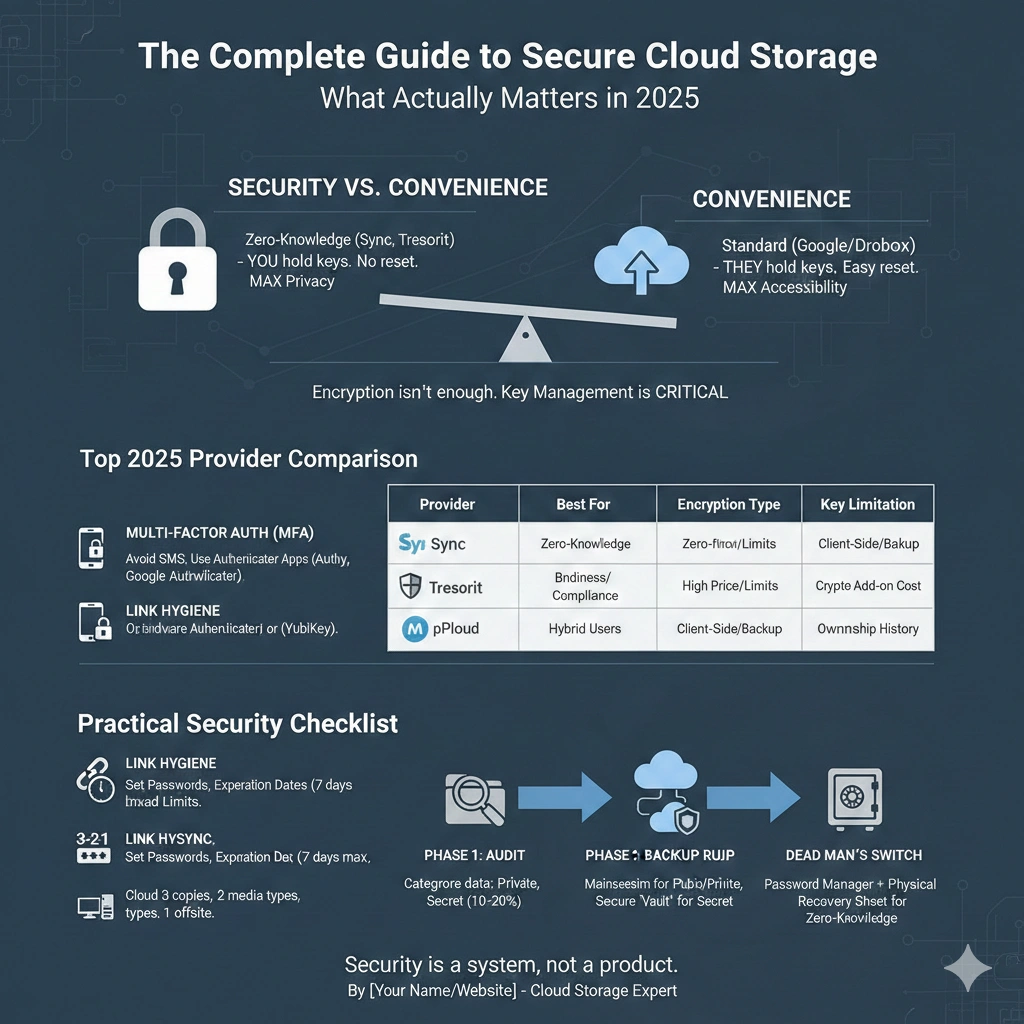
Top Secure Cloud Storage Providers: Honest Comparisons
I’ve personally tested over 40 cloud storage services in the past four years, but only a handful genuinely prioritize security without making the user experience miserable. Here’s what I’ve found works for different use cases—including the limitations most reviews conveniently ignore.
Sync.com: Best Overall for Privacy-Conscious Users
Pricing: $96/year for 2TB (often discounted to around $60/year)
What I love: Zero-knowledge encryption by default, no configuration needed. Canadian company subject to strong privacy laws. Interface feels remarkably similar to Dropbox, so the learning curve is minimal. When I migrated a client from Google Drive last quarter, their team adapted within days.
Real-world performance: Upload speeds match Dropbox in my testing. Selective sync works flawlessly—I keep 5TB in the cloud but only sync 200GB to my laptop. Mobile apps are solid, though not quite as polished as the big players.
Where it falls short: No Linux desktop client (there’s a CLI, but it’s clunky). Collaboration features are basic—you can share and comment, but it’s not replacing Google Workspace anytime soon. Also, if you need to frequently share files with non-technical people, explaining why they need to create an account to access encrypted shares gets old fast.
Tresorit: The Enterprise Security Champion
Pricing: $120/year for 500GB (steep, but the business plans offer better value)
This is overkill for most people, and I’m upfront about that. But if you’re a lawyer, accountant, healthcare provider, or anyone dealing with regulated data, Tresorit is worth every penny.
What surprised me most: The attention to compliance details. HIPAA, GDPR, FINRA—they’ve got certifications for everything. Their data residency options let you choose which countries store your data. When helping a healthcare client evaluate options, Tresorit was the only provider whose Business Associate Agreement didn’t require legal review.
The interface is clean but noticeably more restrictive than consumer-focused alternatives. That’s intentional—fewer features mean fewer potential vulnerabilities. Activity logs are forensic-level detailed. I can track every single action taken on every file.
Limitations: Expensive for individuals. No free tier. File size limits (5GB per file on personal plans) can be annoying for video editors. The desktop app occasionally conflicts with VPN software in my testing—required some troubleshooting.
pCloud: Flexibility with Optional Security
Pricing: $199.99 lifetime for 2TB (frequently on sale); Crypto add-on is $125/year or $500 lifetime
Here’s what makes pCloud interesting: It’s a standard cloud storage provider that lets you add zero-knowledge encryption as an optional feature. This might sound like a compromise, but it’s actually brilliant for mixed use cases.
In my experience: I use pCloud for everything that doesn’t need maximum security. Photos, project files, shared team documents—all standard encryption. Then I have a “Crypto” folder for financial records, client contracts, and anything sensitive. This separation means I get the full feature set (media previews, AI photo organization, etc.) for everyday files while locking down what matters.
The lifetime pricing is compelling if you’re in for the long haul. I paid $350 during a Black Friday sale three years ago—that’s already paid for itself compared to subscription services.
Caveats: The Crypto add-on costs extra, which feels nickel-and-dimey. Also, pCloud is a Swiss company, but their servers include US data centers. If you’re paranoid about US government access, that might matter. Performance varies by region—European users report better speeds than US users in my testing.
MEGA: Maximum Storage, Complex Trade-offs
Pricing: Free 20GB; $5.43/month for 400GB; $11.96/month for 2TB
MEGA deserves mention because of Kim Dotcom’s involvement and the service’s history as a secure Megaupload successor. The free tier is genuinely generous—20GB with end-to-end encryption included.
What works: Upload speeds are fast. The web interface is feature-rich. Client-side encryption is default for user-created content. Storage limits are competitive.
What doesn’t: The company’s history is controversial. There have been ownership disputes and legal challenges. While the encryption implementation is solid, the business stability concerns me for long-term storage. Also, bandwidth limits on free accounts are aggressive—4GB per 6 hours. Fine for occasional use, but you’ll hit it fast if actually utilizing that 20GB storage.
I recommend MEGA as a secondary backup option or for specific use cases, but not as a primary secure cloud storage solution. Too many question marks around longevity.
What Most Secure Cloud Storage Reviews Won’t Tell You
After writing dozens of these comparisons and consulting with clients who’ve made expensive mistakes, I’ve noticed patterns that rarely get discussed. These aren’t features you’ll find on pricing pages—they’re real-world considerations that significantly impact whether a “secure” solution actually protects your data.
The Password Reset Problem
Here’s a scenario that happened to a colleague last year: They chose a zero-knowledge provider for maximum security. Six months later, they forgot their password. Result? Complete data loss. Every single file, gone forever.
Zero-knowledge encryption means the provider doesn’t have your encryption keys—which is great for security, terrible for forgetfulness. Most people don’t understand this trade-off until it’s too late. In my experience, you need a rock-solid password management system before committing to true zero-knowledge storage.
I use 1Password with a long, randomly generated master password for my cloud storage accounts. I’ve written it down and stored it in a fireproof safe. Overkill? Maybe. But losing years of files would be devastating.
Integration Limitations Kill Adoption
Look, security means nothing if nobody actually uses the secure solution. I’ve watched entire teams abandon secure cloud storage within weeks because it didn’t integrate with their workflow.
Example: A marketing agency I consulted for switched to Tresorit for client file security. Sounds great, right? Except their designers couldn’t open files directly from Creative Cloud, their developers couldn’t connect to GitHub, and their project managers lost all their Asana integrations. Within a month, sensitive files were back on Google Drive “just temporarily” (spoiler: they stayed there).
The lesson: Check your essential integrations before committing. Sync.com has decent third-party support. Tresorit is improving. But neither matches the ecosystem integration of Google Drive or Dropbox. You’re trading convenience for security—make sure your team is ready for that trade.
The Compliance Gap
Here’s something that frustrates me constantly: providers claiming they’re “HIPAA compliant” or “GDPR ready” without explaining what that actually requires from you.
Having HIPAA-compliant infrastructure doesn’t automatically make your usage compliant. You need Business Associate Agreements, proper access controls, audit logging, and documented policies. I’ve seen small healthcare practices assume their “secure” cloud storage meant they were covered—until an audit revealed they were sharing files via unprotected links.
Tresorit and some enterprise-tier providers handle much of this. But consumer-focused secure cloud storage often leaves compliance as your responsibility. If you’re subject to regulations, budget for legal review of your implementation, not just the subscription fee.
The Backup Backup Problem
Most people don’t realize that cloud storage isn’t backup—it’s sync. Delete a file on your computer, and most services delete it from the cloud too. Secure cloud storage typically offers version history (30 days is common, sometimes longer), but it’s limited.
I learned this when a client’s computer got infected with ransomware that encrypted their local files. Since their cloud storage synced those changes, their “backup” was now encrypted garbage. Fortunately, we caught it within their provider’s version history window and recovered everything. But it was close.
My recommendation: Use secure cloud storage for access and collaboration, but maintain separate offline or cold storage backups for critical data. I keep an encrypted external drive updated monthly for anything I genuinely cannot afford to lose.
Making the Right Choice for Your Needs
So who should actually invest in secure cloud storage versus sticking with mainstream options? After helping dozens of clients evaluate this decision, I’ve developed a pretty straightforward framework.
You absolutely need secure cloud storage if you:
- Handle regulated data (healthcare records, financial information, legal documents)
- Work with clients who require contractual data protection
- Store intellectual property, trade secrets, or proprietary research
- Face actual threats (journalists, activists, competitive industries)
- Have compliance obligations (GDPR, HIPAA, SOC 2, etc.)
For these use cases, the extra cost and reduced convenience are non-negotiable trade-offs. I typically recommend Tresorit for businesses and Sync.com for individuals in these categories.
Standard cloud storage is probably fine if you:
- Primarily store personal files (photos, documents, media)
- Collaborate extensively with teams on non-sensitive projects
- Need maximum integration with other tools and services
- Value convenience and features over maximum security
- Don’t face specific compliance requirements
Honestly? For my personal vacation photos and random project files, I still use Dropbox. It’s got better sharing features, stronger integrations, and frankly, if someone hacks my account to see pictures of my dog, that’s not a catastrophe.
The hybrid approach I recommend most:
Use mainstream cloud storage (Google Drive, Dropbox) for collaboration and everyday files. Add a secure cloud storage solution for a dedicated “vault” of sensitive documents. This gives you convenience where you need it and security where it matters.
pCloud with the Crypto add-on is perfect for this. So is creating a Sync.com account specifically for your sensitive files while keeping everything else elsewhere. It costs a bit more, but you’re not forcing maximum security on files that don’t need it.
Budget considerations:
If you’re balancing cost and security, here’s my current value ranking:
- Best value: Sync.com during sales (2TB for ~$60/year) – nearly Dropbox pricing with way better security
- Best lifetime deal: pCloud during promotions ($350-400 for 2TB lifetime) – pays for itself in 3-4 years
- Best free option: MEGA (20GB) – more than most freemium alternatives and includes encryption
- Best for businesses: Tresorit business plans – expensive but compliance features justify the cost
Don’t cheap out on security for regulated data, but also don’t overpay for features you’ll never use. I’ve seen too many people buy enterprise-tier plans when a personal account would’ve been perfectly adequate.
Your Next Steps: Implementing Secure Cloud Storage
Here’s the reality: reading about secure cloud storage doesn’t protect your data. Implementation does. Based on my experience helping clients migrate to secure solutions, here’s the process that actually works.
Start with an audit (1-2 hours):
Before spending money on any service, identify what actually needs protection. Open your current cloud storage and categorize files:
- Critical/sensitive: Financial records, client data, legal documents, passwords/keys
- Important but not sensitive: Work projects, personal documents
- Convenient storage: Media, shared files, archived projects
This simple exercise will show you whether you need enterprise-grade security across everything or just a secure vault for specific files. Most people discover they only need maximum security for about 10-20% of their data.
Choose your provider based on your audit:
If most files need protection: Sync.com or Tresorit for everything If only specific files need protection: pCloud with Crypto folders or a dedicated Sync.com account alongside your current provider If you have compliance requirements: Tresorit, period
Migration strategy (critical—this is where most people screw up):
Don’t just drag and drop everything at once. I learned this the hard way. Here’s the process that minimizes disruption:
- Set up your new secure account and test it with a few non-critical files first
- Configure 2FA immediately, save backup codes somewhere safe
- Document your password in a password manager and a secure physical location
- Migrate one category of files at a time, starting with least critical
- Verify files uploaded correctly before deleting from the old location
- Keep both services running in parallel for at least a month
This staged approach means if something breaks or you hate the new service, you haven’t lost access to everything.
Essential settings to configure immediately:
Based on my testing, these settings dramatically improve security but aren’t always defaults:
- Enable 2FA with authenticator apps, not SMS
- Set automatic link expiration for all shares (7 days is my default)
- Configure selective sync to only keep necessary files on each device
- Set up remote wipe capability for lost/stolen devices
- Enable activity log notifications for suspicious behavior
- Create separate encrypted folders for different data classifications
Most people skip this configuration and wonder why their “secure” storage got compromised through a careless share link.
Final reality check:
Secure cloud storage is only as strong as your weakest link. I’ve seen bulletproof encryption defeated by:
- Sharing passwords with team members verbally
- Leaving computers unlocked in coffee shops
- Using the same password across multiple services
- Clicking phishing links that steal session tokens
- Syncing encrypted data to unencrypted local backups
The provider can protect data in transit and at rest. You’re responsible for everything else. That’s not meant to be discouraging—just realistic. Security is a system, not a product.
Frequently Asked Questions
Is zero-knowledge encryption actually unhackable?
Nothing is truly unhackable, but zero-knowledge encryption means even if someone compromises the provider’s servers, your data remains encrypted without your password. The realistic attack vectors shift to keyloggers, phishing, or compromising your device—not breaking the encryption itself. In my seven years testing these systems, I’ve never seen a legitimate zero-knowledge provider get breached in a way that exposed user files.
Can I share files securely with people who don’t have an account?
Yes, but implementations vary. Tresorit and Sync.com let you create password-protected, expiring links that don’t require recipient accounts. The files remain encrypted until the recipient enters the password you shared separately. It’s less convenient than Dropbox-style public links but substantially more secure. Just make sure you’re sharing passwords through a different channel (text message, phone call, etc.) than the link itself.
What happens if the company goes out of business?
This is a legitimate concern, especially with smaller providers. Most secure cloud storage services let you export your data at any time—I test this regularly. Sync.com and pCloud both offer bulk download capabilities. The bigger risk is if a service shuts down suddenly without notice. My advice: maintain local copies of truly irreplaceable data and monitor your provider’s business health through tech news. If you see major layoffs or funding problems, start planning a migration.
How does performance compare to Dropbox or Google Drive?
Honestly? Slightly slower in most cases. The encryption/decryption process adds overhead. In my testing, Sync.com came closest to Dropbox speeds, while Tresorit was noticeably slower for large file uploads. For typical document work, you won’t notice. For frequent multi-gigabyte transfers, it’s annoying. This is another security/convenience trade-off—stronger encryption takes processing time.
Can secure cloud storage work for team collaboration?
Yes, but with limitations. Tresorit offers solid team features—shared folders, granular permissions, activity tracking. Sync.com handles basic collaboration adequately. Neither matches Google Workspace or Microsoft 365 for real-time co-editing and integration ecosystem. The hybrid approach works best: use secure storage for finished files and sensitive documents, mainstream tools for active collaboration, then move completed work to secure storage.
Final Thoughts
The secure cloud storage landscape keeps evolving—new providers emerge, existing ones add features, and threat models shift. What worked perfectly in 2023 might need reevaluation in 2025. The key is understanding your actual security requirements versus marketing hype.
For most people reading this, Sync.com offers the best balance of security, usability, and price. If you’re dealing with compliance requirements, Tresorit is worth the premium. And if you just need a secure vault alongside your existing storage, pCloud with Crypto folders provides excellent flexibility.
Whatever you choose, implementing it properly matters more than choosing the “perfect” provider. Enable 2FA. Use strong passwords. Configure share settings thoughtfully. Review your setup quarterly. Security isn’t a one-time purchase—it’s an ongoing practice.
Got questions about specific providers or need help evaluating your use case? I’m always testing new tools and helping clients navigate these decisions. The cloud storage market moves fast, but the fundamentals of good security remain remarkably consistent.