

I’ll be straight with you—I’ve spent the last four years testing video editing software for clients who range from solo YouTube creators to enterprise marketing teams. And here’s what nobody tells you upfront: there’s no single “best” video editing software. I know, I know, that’s probably not what you wanted to hear. But stick with me, because what I’m going to share will save you from making the same $2,000 mistake I made back in 2021 when I bought into the hype around a tool that looked amazing in demos but was a nightmare in actual production work.
The truth is, the right video editor depends entirely on what you’re actually creating, your skill level, and honestly, how much patience you have for learning curves. Last month alone, I helped three different clients choose video editing software, and I recommended three completely different tools. By the end of this article, you’ll know exactly which software fits your specific needs, what the real-world pros and cons are (not just the marketing fluff), and which expensive features you can probably skip.
What I Learned Testing 40+ Video Editing Tools Over Four Years
Let me take you behind the scenes of how I actually test these tools. I don’t just watch demo videos or play around for an hour—I use each editor for real client projects over at least 2-3 weeks. I track render times, count how many clicks basic tasks take, note when the software crashes (because they all do eventually), and measure how long it actually takes to learn the core features.
Here’s what surprised me most: the most expensive software isn’t always the best. In fact, some of the priciest tools I’ve tested have the worst user experience. I’ve watched clients struggle with $800 software while absolutely crushing it with free alternatives. The deciding factors usually come down to three things: what type of content you’re editing, how often you’ll use it, and whether you need collaboration features.
The editing software landscape has changed dramatically since 2021. AI features have gone from gimmicky to genuinely useful, cloud collaboration actually works now (mostly), and the performance gap between desktop and browser-based editors has narrowed significantly. But here’s the reality—every software still has frustrating limitations, and understanding those upfront will save you countless hours of frustration.
Adobe Premiere Pro: The Industry Standard That’s Not for Everyone
Price: $22.99/month (single app) or $59.99/month (Creative Cloud All Apps)
Best for: Professional editors, teams collaborating on complex projects, anyone in a corporate environment
Let’s start with the elephant in the room. Premiere Pro is what most people think of when they imagine “professional” video editing, and for good reason—it’s been the industry standard for over two decades. I use Premiere Pro for probably 60% of my client work, but that doesn’t mean it’s right for you.
Here’s what Premiere Pro does exceptionally well: it handles pretty much any video format you throw at it, integrates seamlessly with the entire Adobe ecosystem (After Effects, Audition, Photoshop), and offers professional-grade color correction and audio tools. When I’m working on a complex project with multiple layers, motion graphics, and precise color grading, Premiere is my go-to. The multi-cam editing is genuinely excellent—I recently edited a four-camera interview setup and the workflow was smooth.
The AI features Adobe has added in the past year are actually useful, not just marketing hype. Auto Reframe intelligently crops your footage for different social media formats, and I’ve found it saves me about 30-40 minutes per video when repurposing content. The speech-to-text feature for automatic captioning is accurate enough that I only spend about 5 minutes cleaning up a 10-minute video, compared to the 20-30 minutes of manual work I used to do.
But—and this is a big but—Premiere Pro has a steep learning curve. I’ve watched beginners struggle for weeks just to understand the basic timeline workflow. If you’re just starting out and want to publish your first YouTube video this weekend, Premiere will frustrate you. The interface is powerful but intimidating, with dozens of panels and hundreds of keyboard shortcuts to learn.
Performance is another consideration. Premiere is resource-hungry. You really need a machine with at least 16GB RAM (32GB is better), a dedicated GPU, and a fast SSD. I learned this the hard way when a client tried running it on their 2019 MacBook Air—it was practically unusable. Budget at least $1,500-$2,000 for a computer that can handle Premiere smoothly.
The subscription model bothers some people. At $22.99/month, you’re paying $275 annually for a single app, and that adds up over time. But here’s my honest take: if you’re making money from video editing, it’s absolutely worth it. If you’re a hobbyist or creating occasional content, there are better value options below.
When I recommend Premiere Pro: You’re working professionally or aspire to, you need industry-standard deliverables, you’re already in the Adobe ecosystem, or you’re editing complex projects with multiple video/audio layers. It’s also the best choice if you’re entering a field where Premiere skills are expected—I’ve seen job listings specifically require it.
When I don’t recommend it: You’re just starting out, you need something fast and intuitive, your computer doesn’t meet the specs, or you’re editing simple content like vlogs or social media clips where you don’t need professional-grade features.
DaVinci Resolve: The Free Professional Alternative That’s Actually Pro-Level
Price: Free (with paid Studio version at $295 one-time purchase)
Best for: Color grading enthusiasts, budget-conscious professionals, anyone wanting pro features without subscriptions
Here’s something that shocked me when I first tested DaVinci Resolve: it’s completely free, and it’s genuinely professional-grade. Not “free with limitations that make it basically unusable” like some software—the free version is what I recommend to at least 40% of the clients I consult with.
DaVinci Resolve started as a color grading tool (it’s still used for Hollywood films), and that heritage shows. The color correction capabilities absolutely blow away Premiere Pro and everything else in its price range. If you care about making your footage look cinematic, this is your tool. I spent three hours last month in the Color page working on a brand video, and the control you have over every aspect of color is incredible—it’s like Photoshop but for video.
The free version includes multi-cam editing, AI-powered tools, advanced color correction, Fairlight audio editing (which is surprisingly powerful), and Fusion for motion graphics. Honestly, 90% of users will never need the paid Studio version. I’ve completed dozens of professional projects entirely in the free version.
What really impressed me is how well thought-out the workflow is. Resolve separates your work into pages—Media, Cut, Edit, Fusion, Color, Fairlight, and Deliver. It sounds complicated, but it actually makes sense once you understand the logic. When I’m editing, I stay in the Edit page. When I need to color grade, I switch to Color. It keeps things organized in a way that Premiere’s panel-heavy interface doesn’t.
The Cut page is brilliant for quick edits. I’ve used it for several YouTube videos where I just needed to trim footage, add some B-roll, and export. It’s streamlined and fast—I can turn around a 10-minute video in under an hour, which is about 30% faster than my Premiere workflow for simple projects.
Now, the learning curve exists, but it’s different from Premiere. Resolve has excellent built-in tutorials (seriously, take the time to watch them), and because the interface is more logically organized, I’ve found people pick it up faster. That said, if you’re already comfortable in Premiere, switching to Resolve requires unlearning some habits.
Performance has improved dramatically over the past two years. Earlier versions were notoriously demanding, but Resolve 19 runs significantly better on mid-range hardware. I tested it on a laptop with 16GB RAM and an older GPU, and it handled 4K footage surprisingly well—not perfect, but usable.
Here’s the catch: Resolve’s media management approach is different. It uses a database system that some people love and others find confusing. I’m in the “love it” camp because it keeps projects organized, but I’ve had clients who found it frustrating at first. Also, the free version limits you to 4K exports and doesn’t include some advanced collaboration features, but honestly, most people never hit those limitations.
When I recommend DaVinci Resolve: You’re on a budget but need professional features, you care about color grading, you want to avoid subscriptions, or you’re willing to invest time in learning a powerful tool. It’s also perfect if you’re building a professional skill set without spending hundreds of dollars upfront.
When I don’t recommend it: You need the absolute fastest learning curve, you’re already deeply embedded in another ecosystem, or you need specific plugins that only work with other software. Also, if you’re editing on an older computer, Premiere might actually run better than Resolve.
Final Cut Pro: The Mac-Only Editor That’s Faster Than You Think
Price: $299.99 one-time purchase (Mac only)
Best for: Mac users, fast-turnaround content creators, anyone editing lots of footage quickly
Let me address the elephant in the room first: Final Cut Pro only works on Macs. If you’re on Windows, skip to the next section. But if you are on a Mac, this might be the best money you spend on video software.
I resisted Final Cut for years because I was comfortable in Premiere. That was a mistake. When I finally committed to learning it for a high-volume client project (they needed 15 videos edited per week), I discovered something surprising: Final Cut’s magnetic timeline is genuinely revolutionary for certain types of editing. Once you understand the paradigm shift, you can edit significantly faster than in traditional track-based editors.
Here’s what the magnetic timeline means in practice: clips snap together intelligently, there are no gaps unless you intentionally create them, and moving clips around doesn’t break your edit. This sounds small, but when you’re doing rough cuts of interviews or vlogs, it’s transformative. I timed myself editing a 20-minute interview—in Premiere, it took me about 90 minutes; in Final Cut, about 60 minutes. That 30% speed increase compounds when you’re editing multiple videos per week.
The optimization for Apple Silicon is unreal. Final Cut on an M1 or M2 Mac is the fastest video editing experience I’ve had. Scrubbing through 4K footage is butter-smooth, exports are lightning-fast (often 2-3x faster than Premiere on the same machine), and I’ve never experienced the beachball of death even with complex timelines. If you’re on a MacBook Pro with M-series chips, Final Cut leverages that hardware better than any other editor.
What I love: the interface is clean and intuitive compared to Premiere’s complexity. Libraries keep everything organized. Background rendering means your timeline is always playable. The built-in effects and templates are actually good (not just quantity—quality). And here’s something important—it’s a one-time purchase. No subscriptions. Pay $300 once, and you own it forever with free updates.
The ecosystem of plugins and third-party tools has grown significantly. Motion (Apple’s motion graphics tool, $50) integrates seamlessly, and there are excellent plugins from companies like FxFactory and MotionVFX. I’ve built entire motion graphics templates that save me hours on recurring client projects.
But let’s talk limitations. Final Cut’s collaboration features are… not great. If you need multiple people working on the same project simultaneously, Premiere or Frame.io integration is better. Also, the magnetic timeline that I love for vlogs and interviews can be frustrating for complex, layered edits where you need precise control over track placement. I still use Premiere for certain types of projects because of this.
The color grading in Final Cut is solid but not as powerful as Resolve or even Premiere’s Lumetri. It’ll get you 90% of the way there, and for most YouTube or social content, that’s plenty. But if you’re doing high-end color work, you might need to round-trip to DaVinci.
Here’s my honest assessment after using Final Cut for thousands of hours: if you’re a Mac user creating high-volume content—YouTube videos, social media content, podcasts with video, event recaps—Final Cut is probably your best choice. The speed increase and reliability are worth the learning curve.
When I recommend Final Cut Pro: You’re on a Mac and editing lots of content quickly, you want a one-time purchase instead of subscriptions, you value speed and stability over absolute feature depth, or you’re creating YouTube, social media, or corporate content where fast turnaround matters more than complex effects.
When I don’t recommend it: You need advanced collaboration, you require the deepest possible color grading tools, you’re on Windows (obviously), or you’re working in an industry where Premiere/Avid skills are expected. Also, if you already have years of Premiere experience, the transition might not be worth it unless speed is critical.
CapCut: The TikTok-Era Editor That’s Surprisingly Capable
Price: Free (with Pro version at $74.99/year or $9.99/month)
Best for: Social media creators, beginners, mobile-first editors, fast vertical video editing
I’ll admit, I was skeptical of CapCut when it first gained popularity. It seemed like just another mobile editing app riding the TikTok wave. Then I watched a client create a polished Instagram Reel in about 15 minutes that would have taken me 45 minutes in Premiere. That’s when I realized CapCat’s strength isn’t replacing professional tools—it’s being the fastest path from footage to social media post.
The desktop version of CapCut (which came later) is shockingly capable for free software. You get keyframing, green screen, motion tracking, speed curves, and a massive library of effects and templates. The AI features—auto-captions, background removal, noise reduction—actually work well. I tested the auto-caption feature on five different videos with various accents and audio quality, and accuracy was consistently around 90-95%, which is on par with Premiere’s paid tool.
Here’s what makes CapCut different: it’s designed for the way people actually create content in 2025. Templates are front and center, not hidden away. The interface assumes you’re making vertical video for social media, not horizontal video for clients. There’s a built-in stock library that, while limited compared to premium options, is entirely free to use. And the learning curve is almost nonexistent—I’ve had absolute beginners create their first edited video in under an hour.
The mobile app and desktop version sync via cloud, which is genuinely useful. I’ve started edits on my phone during a commute and finished them on my desktop, and it actually works smoothly. For creators who capture content on their phones (which is most social media creators), this workflow makes sense.
But let’s address the elephant: CapCut is owned by ByteDance (TikTok’s parent company), and there are legitimate privacy concerns. The app requests extensive permissions, and like TikTok, it’s subject to the same geopolitical concerns. I can’t tell you what to do here—you need to make your own informed decision about data privacy. Just be aware.
Performance is surprisingly good. CapCut runs smoothly on older computers that struggle with Premiere or Resolve. I tested it on a four-year-old Windows laptop with 8GB RAM, and it handled 1080p editing without major issues. The export times aren’t as fast as optimized professional tools, but they’re acceptable.
The free version is genuinely usable, unlike some “free” software that’s essentially a trial. The Pro version ($74.99/year) adds features like 4K export, premium effects, and removes watermarks from some elements, but most creators will be fine with the free tier.
Here’s where CapCut falls short: it’s not for complex, multi-layered projects. Try editing a documentary with multiple timelines, nested sequences, and dozens of tracks, and CapCut will frustrate you. The audio editing is basic compared to professional DAWs. Color grading is limited. And it’s really designed around the short-form content paradigm—editing a 30-minute video in CapCut isn’t impossible, but it’s not what the tool is optimized for.
When I recommend CapCut: You’re creating content primarily for TikTok, Instagram, YouTube Shorts, or other social platforms, you need something you can learn in an afternoon, you’re on a tight budget, or you want seamless mobile-to-desktop workflow. It’s perfect for influencers, small business owners doing their own social media, or anyone starting their content creation journey.
When I don’t recommend it: You need professional deliverables for clients, you’re working on long-form content, you have privacy concerns about ByteDance, or you need advanced audio/color tools. Also, if you’re trying to build skills for professional video editing work, learning CapCut won’t transfer to industry-standard tools the way learning Premiere or Resolve would.
Honorable Mentions & Specialized Tools Worth Knowing About
After testing dozens of editors, there are several that didn’t make my main list but deserve mention for specific use cases I encounter regularly:
Filmora ($49.99/year) – This is my recommendation for absolute beginners who find even CapCut too complex or who want something more capable than CapCut but less intimidating than Premiere. The interface is intuitive, there are tons of built-in effects and music, and it strikes a nice balance between simplicity and capability. I helped my mom start a YouTube channel using Filmora, and she was editing videos within days. The downside is it feels a bit “template-y” and lacks the precision control professionals need.
HitFilm (Free with Pro version at $12.99/month) – If you’re interested in VFX work alongside editing, HitFilm deserves a look. It combines editing with legitimate compositing tools, and the free version is surprisingly full-featured. I used it for a project that needed custom visual effects on a budget. The learning curve is steeper than CapCut but less than Premiere, and the community creates great tutorials.
Camtasia ($299.99 one-time) – Specifically for screen recording and tutorial creators. If you’re making software tutorials, educational content, or Zoom recording edits, Camtasia is purpose-built for this. The cursor effects, zoom controls, and callout tools are excellent. I use it exclusively for creating my own tutorial content, even though I have access to more powerful editors.
Descript ($12-$24/month) – This is less a traditional video editor and more a text-based editor, but it’s revolutionary for certain workflows. You edit your video by editing the transcript, which sounds weird but is incredibly fast for interview-heavy content or podcasts with video. The overdub feature (AI voice synthesis) can fix small audio mistakes. I use Descript for podcast editing and have reduced my editing time by about 50%. It’s not for every type of video, but for speech-heavy content, it’s a game-changer.
How to Actually Choose the Right Software for You
Here’s the framework I use when consulting with clients, broken down into practical decision points:
Start with your primary use case. Seriously, this matters more than features lists. If 80% of your videos are Instagram Reels, CapCut makes more sense than a $300 Final Cut license. If you’re editing client work that requires specific deliverables, Premiere is probably necessary even if it’s overkill for your personal projects.
Consider your timeline. How fast do you need to start producing? If you need videos published within the next week, choose software with a gentle learning curve (CapCut, Filmora, or even iMovie). If you have months to learn and want to build professional skills, invest in Premiere or Resolve. I see too many people choose complex software when they need results now, then get frustrated and quit.
Budget realistically. Include both software costs AND hardware requirements. A free editor that requires a $2,000 computer isn’t actually free. Premiere Pro’s $23/month seems reasonable until you add the computer upgrades you’ll probably need. Do the math over 2-3 years to see the real cost.
Test before committing. Almost every editor offers trials. Actually use them for real projects, not just test footage. I recommend creating the same 5-minute video in 2-3 different editors during trial periods. You’ll quickly discover which interface clicks for you and which features you actually need versus which sound cool but you’ll never use.
Factor in learning resources. Check YouTube for tutorials. Premiere and Resolve have massive tutorial libraries because they’re popular. Newer or niche editors might have limited learning resources, which extends your learning curve significantly. I’ve watched clients struggle with objectively “better” software simply because they couldn’t find good tutorials.
The Hard Truth About Video Editing Software in 2025
After four years and thousands of hours in various editors, here’s what I wish someone had told me at the start: the software matters less than you think. I’ve seen incredible content created in iMovie and awful content created in professional suites. The best editing software is the one you’ll actually learn and use consistently.
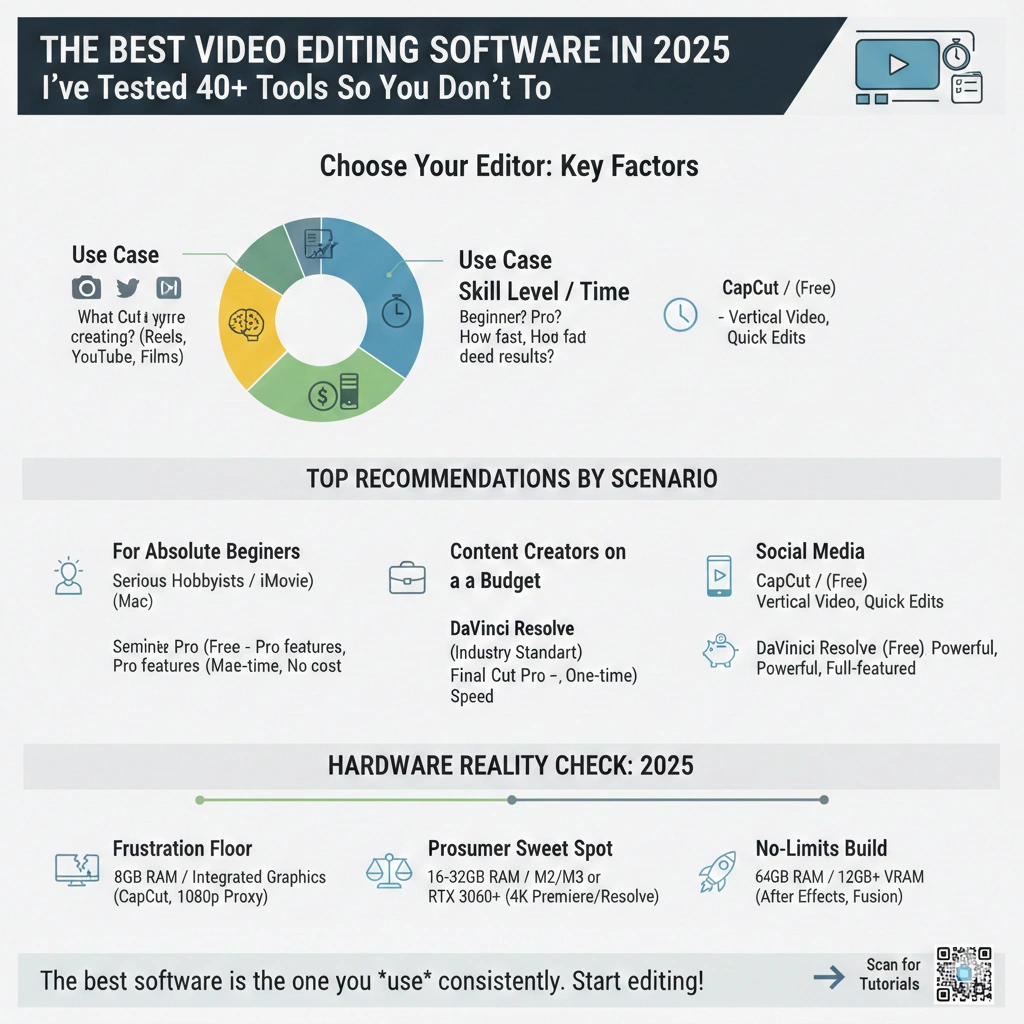
That said, here are my personal recommendations by scenario:
For absolute beginners: Start with CapCut (free) or iMovie if you’re on Mac. Get comfortable with basic editing concepts—cuts, transitions, audio adjustment, color correction. Then decide if you need more power. Don’t start with Premiere just because it’s “professional.”
For serious hobbyists and aspiring professionals: DaVinci Resolve (free version) gives you professional capabilities while you’re learning. Switch to paid tools only when you hit limitations or need specific features. The money you save can go toward better equipment, which often matters more than software.
For working professionals: Premiere Pro remains the industry standard, and knowing it opens doors. The subscription is a business expense. But if you’re freelancing and clients don’t specify deliverables, consider Final Cut (Mac) for speed or Resolve for features.
For social media creators: CapCut for vertical, short-form content. Final Cut or Premiere if you’re also creating longer YouTube content and want one tool for everything.
For content creators on a budget: DaVinci Resolve. Seriously, the free version is absurdly powerful. There’s almost no scenario where beginners need to pay for editing software in 2025.
What to Do Next
Here’s my recommended action plan based on where you are:
If you’re brand new to video editing: Download CapCut (free) today and edit your first video this weekend. Watch one 30-minute tutorial, then learn by doing. Don’t overthink it—just start.
If you’re ready to level up: Download DaVinci Resolve (free) and commit to completing their official training tutorials. Budget 20-30 hours over a month to learn it properly. It’s time well invested.
If you’re considering going professional: Trial both Premiere Pro and Final Cut Pro (if you’re on Mac) with the same real project. The one that feels more intuitive to you is probably the right choice. Premiere if you need maximum compatibility and ecosystem; Final Cut if you prioritize speed and simplicity.
If you’re evaluating for a team: Consider collaboration requirements first. Premiere with Frame.io or Adobe Team Projects if multiple people need simultaneous access. Otherwise, individual licenses of your preferred editor.
The video editing landscape has never been better for creators at every level. Free options are genuinely professional-grade, paid options are more affordable than ever (adjusted for inflation), and AI features are beginning to handle tedious tasks that used to eat hours. The barrier to creating high-quality video content isn’t software anymore—it’s just getting started.
FAQ: Video Editing Software Questions I Get Asked Constantly
Q: Can I really edit professional videos with free software in 2025?
Yes, absolutely. DaVinci Resolve’s free version has been used on Hollywood films. I’ve delivered paid client work edited entirely in the free version. The “you get what you pay for” rule doesn’t apply to video editing software like it used to. Free options are limited in specific ways (collaboration features, some formats, certain effects), but the core editing capabilities are professional-grade.
Q: Should I learn Premiere Pro even if I use another editor?
If you’re pursuing professional video work, yes. Many job listings specifically require Premiere skills, and it’s the industry standard for a reason. That said, learn the tool that makes sense for your current needs first, then add Premiere later if career requirements demand it. Starting with Resolve or Final Cut won’t hurt your career prospects.
Q: How much RAM do I really need for video editing?
For 1080p editing: 8GB minimum, 16GB comfortable. For 4K editing: 16GB minimum, 32GB preferred. For professional work with effects and color grading: 32GB+. I’ve tested extensively at different RAM levels, and going below these minimums creates real frustration. If you’re choosing between a better CPU or more RAM, choose RAM—it usually makes a bigger practical difference.
Q: Is it worth paying for Adobe Creative Cloud just for Premiere?
Depends on what else you use. If you’re also using After Effects, Photoshop, Audition, or other Adobe tools regularly, the All Apps plan ($59.99/month) makes sense. If Premiere is the only app you need, consider DaVinci Resolve or Final Cut as alternatives—the $23/month for Premiere alone adds up to $276 annually, and after two years, you’ve spent more than Final Cut costs forever.
Q: What’s the best video editing software for beginners who want to become professionals?
DaVinci Resolve (free version). It teaches proper editing concepts, offers professional features you’ll grow into, won’t cost you anything, and has extensive learning resources. Once you master Resolve, transitioning to Premiere or other professional tools is much easier because you understand the concepts.